

Once a company’s homepage is created and published, it is customary to use Google Analytics to analyze the access of users visiting the site. You may have recently started using Google Analytics, but the term “parameter” has come up and you feel like you don’t understand it. This may seem difficult, especially if you are a beginner in website design.
Therefore, this time, I will explain the meaning of the parameters in an easy-to-understand manner. Furthermore, we will explain the types of parameters and how to use them, mainly focusing on how to use them with Google Analytics.
What are parameters?
Parameter
is the English word “Parameter,” and its dictionary meanings include “mediating variable,” “parameter,” “limiting element, factor,” and “limit (range).”
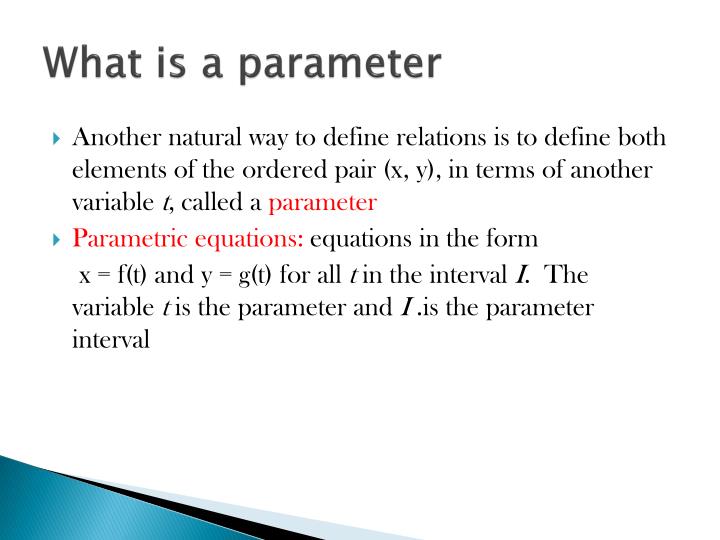
Parameters are mainly used in genres such as mathematics, machinery, software, and the web, and it is possible to give some value to each mechanism from the outside using parameters. The output and behavior can be changed depending on the values given by the parameters.
By assigning parameters from the outside, it is possible to make changes without changing the internal structure.
A common opportunity for people involved in the IT business to use parameters is to attach them to the URL of a homepage. I will explain the types of parameters later, but most of the people reading this article probably want to know about UR parameters.
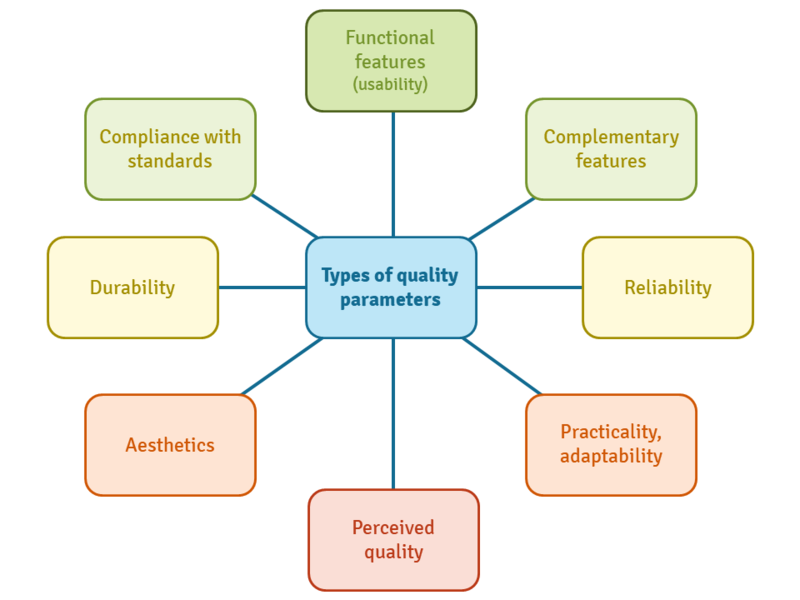
Parameter type
There are many different types of parameters. The first major classification is function parameters and URL parameters. I will explain each of them.
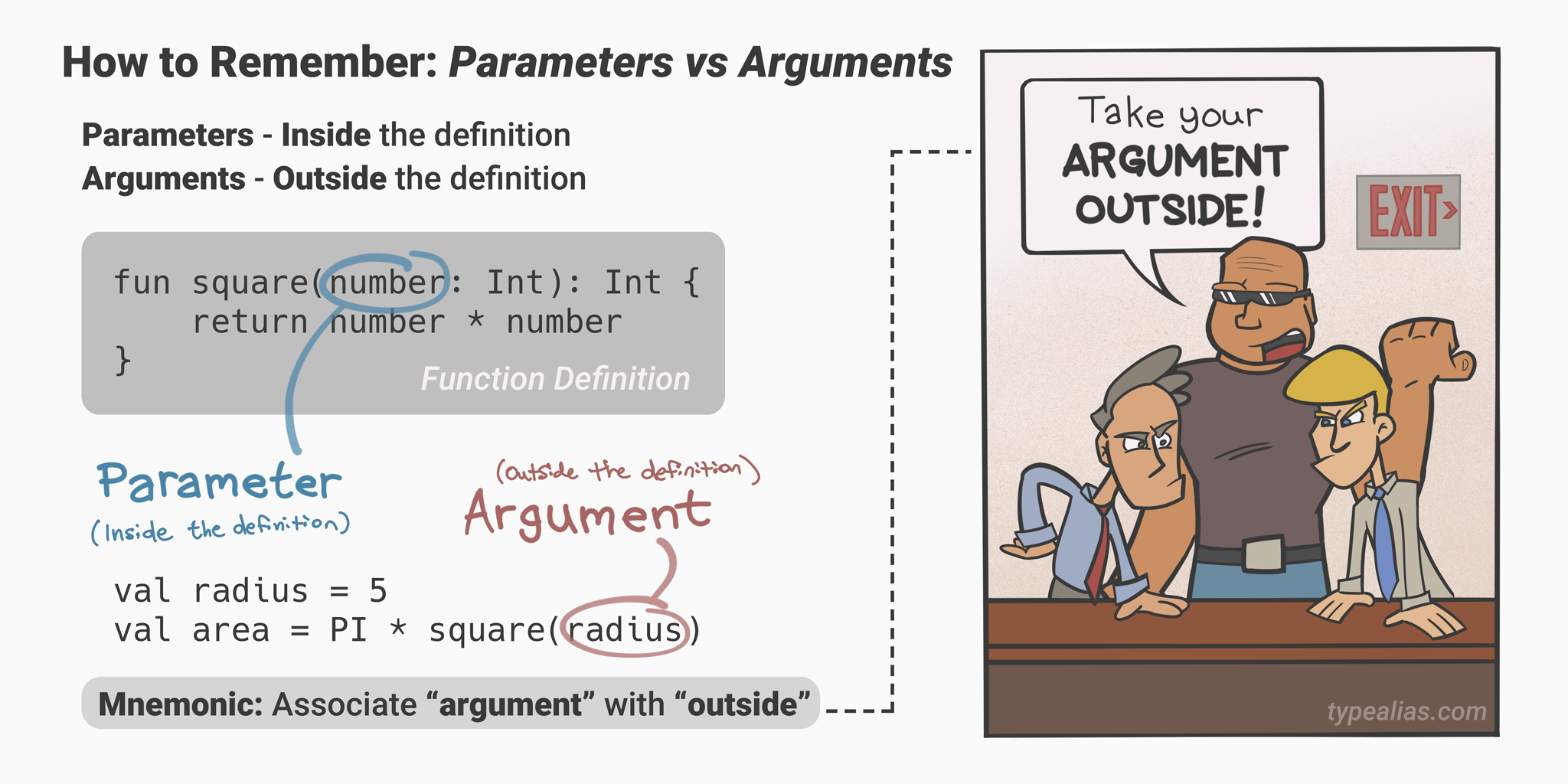
1. Function parameters
Function parameters are used in programming. I will briefly explain it here.
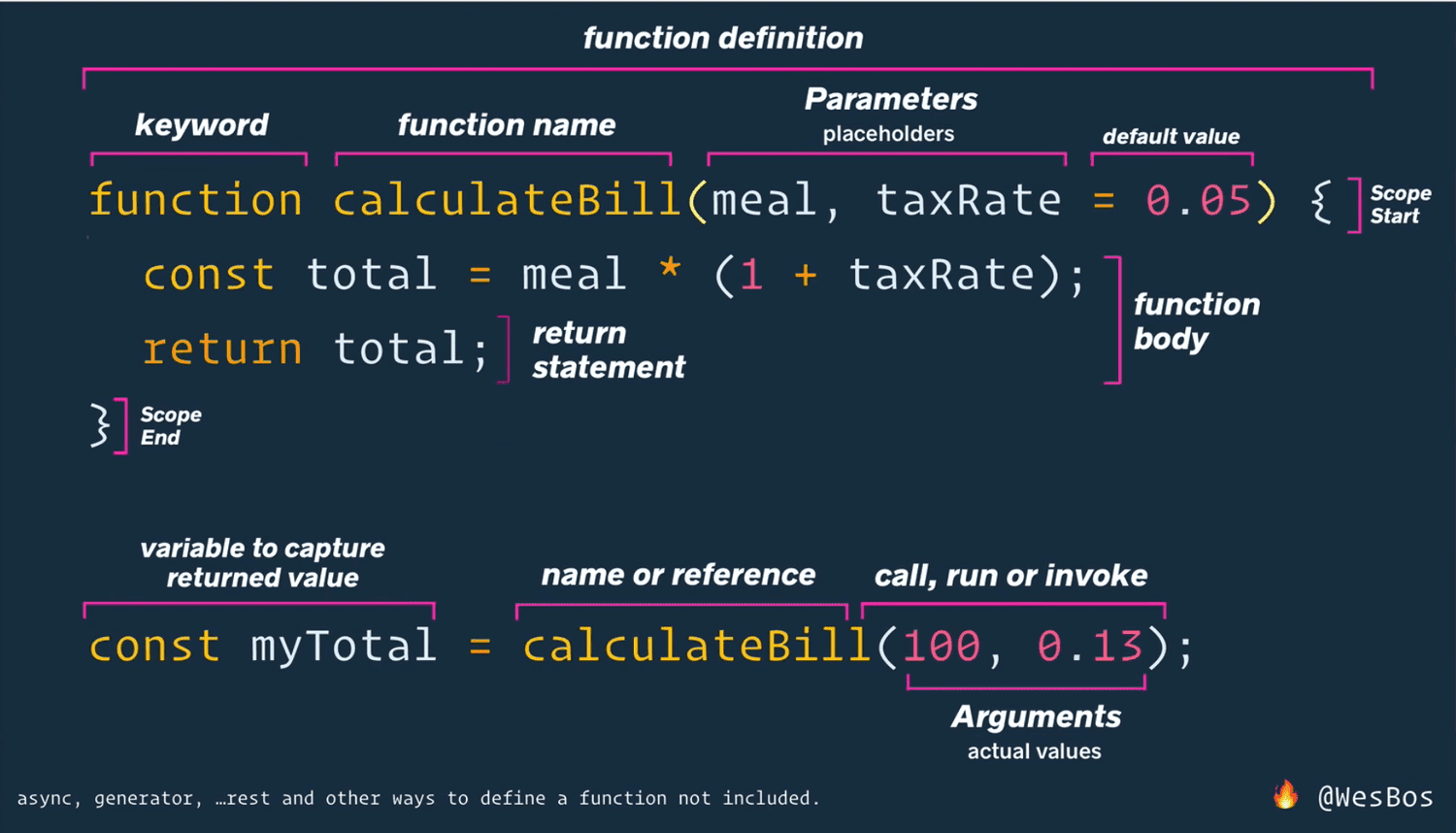
In programming, when defining a function or method, variable names are listed and declared at the beginning. These declared variables are called parameters. They are called “arguments” or “actual arguments.”
This may be difficult to understand if you don’t know programming, but it is one of the instructions you set when running a program.

2.URL parameters
The other thing is the URL parameters mentioned earlier.
A URL parameter is a specific format at the end of a URL. A specific format refers to a format in which a half-width “?” (question mark) is added to the end of the URL, followed by “parameter name = parameter value.”
For example, let’s take the fictitious URL “https://www.sample_test.com” and add URL parameters.
https://www.sample_test.com?utm_source=google
In this example, “?utm_source=google” after “?” is the parameter part.
The parameter part can be broken down into “?”, “utm_source”, “=”, and “google”.
The “utm_source” part is the name of the item to be changed. Then, after the “=” sign, write the value that specifies what kind of change you want to make. Here we use “google”, but what goes into this part is the value.

URL is an abbreviation for “Uniform Resource Locators” and is an address that indicates the location of a specific resource on the Web. When you enter a URL into a web browser, information is sent to the web server, and the content of that address is returned on the web browser. The contents of the page, generally called a “home page”, including text, images, and background, are then displayed and can be viewed through a browser.
So, what happens if you add parameters to the end of the URL, enter it in your web browser, and send it? Then, the browser side can perform some processing including parameter instructions to the server side.
This is a bit of an advanced idea, but multiple sets may be added, with “parameter name = parameter value” as one set. In that case, you can set it by connecting with “&”.
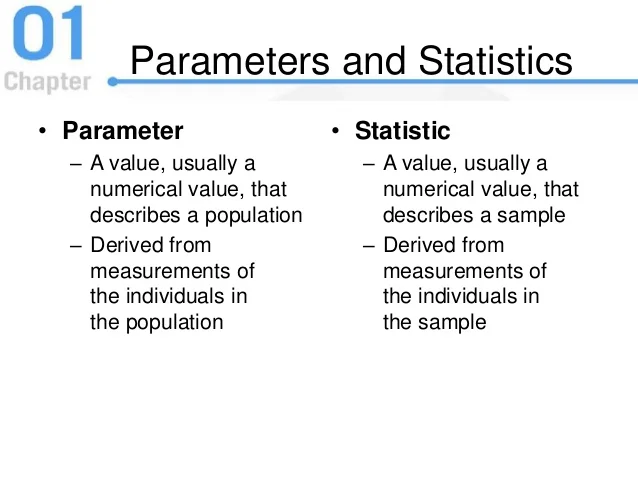
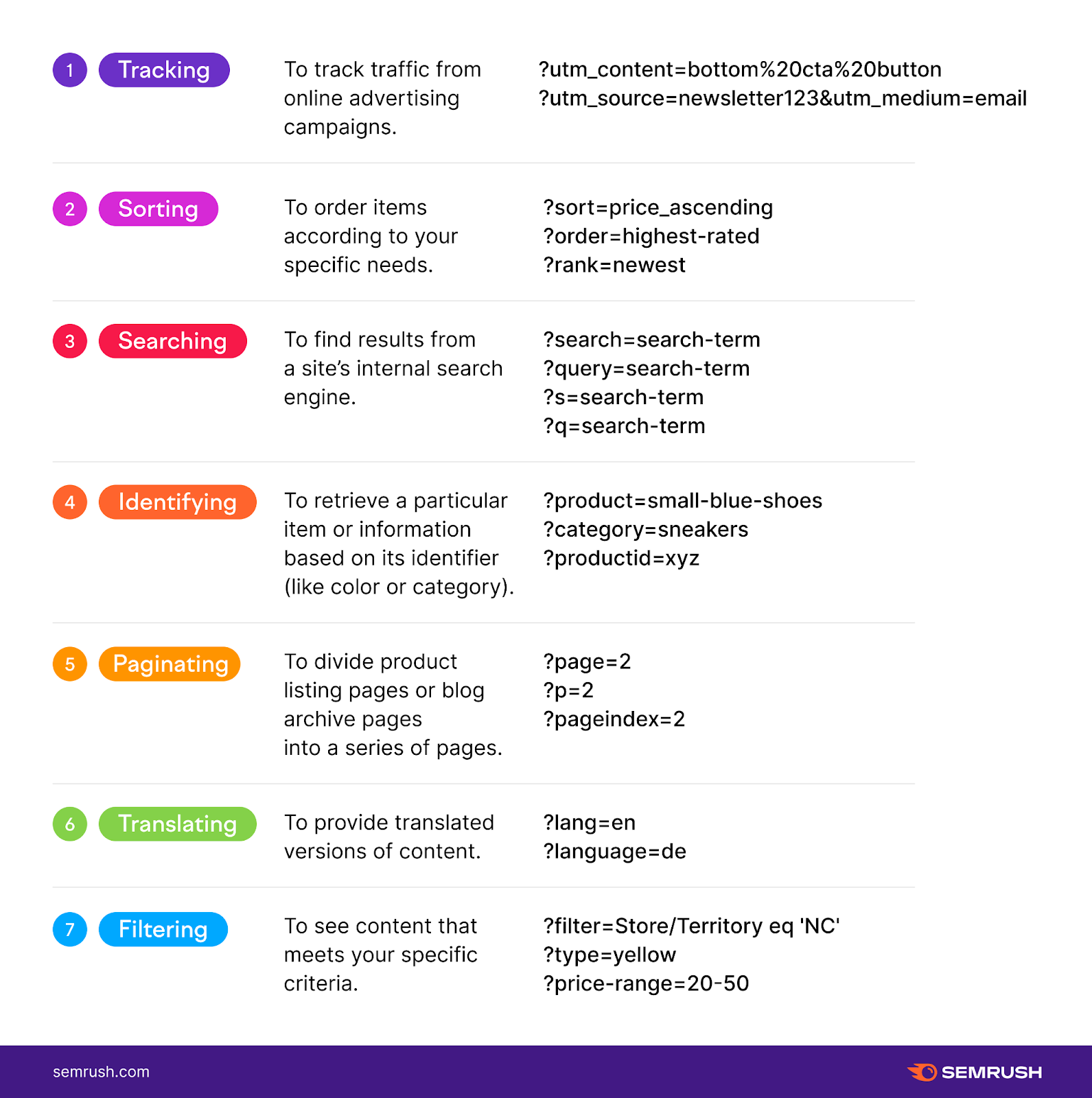
Classification of URL parameters by usage
From here, we will explain URL parameters.
URL parameters have a variety of uses. They are divided into types depending on their purpose. There are two main categories: active parameters and passive parameters. I will explain each of them.
Active parameters ~ change the content of the web page
Active parameters change the content of a web page by adding parameters to the end of the URL. For example, it is used on the product list page of an e-commerce site or some kind of search results page.
For example, on a product list page on an e-commerce site, by adding parameters to the end of the URL, you can narrow down the products to categories and display them.
If it is an e-commerce site that sells mid-year gifts, it is likely that the sweets category will be further divided into various categories such as Japanese sweets, Western sweets, fresh sweets, and dried sweets. If you want to display fresh Japanese sweets among sweets, you can narrow down the display to only fresh sweets from all Japanese sweets by adding a parameter representing fresh sweets to the end of the URL of the Japanese sweets category page.
For example, if you want to search only for fresh sweets products among Japanese sweets,
http://www.ochugen000.com/wagashi.html?type=namagashi
By adding parameters to distinguish between fresh sweets, only fresh sweets will be displayed on the web page.
In addition, in the example of the search results page, suppose there is a website where you can search for real estate properties, and if you want to display narrowed-down conditions such as condominiums, reinforced structures, and automatic locks on the search results page, you can enter parameters for each condition. It is possible to narrow down the display by adding it to the URL. For example, “?AA=manshon”, “?BB=tekkin”, “?CC=au?olock”, etc.
In this way, active parameters allow you to change the content of a web page and display it by adding parameters.
Passive parameters – Measuring some website metrics
On the other hand, a passive parameter is a parameter that is assigned to measure an index when it is set on a website.
Unlike active parameters, passive parameters do not change the content of the web page even if they are added to the end of a URL and entered in a web browser.
For example, the easiest example to understand is the parameter added when measuring the effectiveness of advertisements using access analysis tools such as Google Analytics.
If users come to your homepage through an ad, you’ll probably want to know how many people came through that ad. However, if you do not set anything on the access analysis tool, even if you know that the traffic came from Google, you will not know whether the traffic came from an advertisement or purely from a search. Therefore, in order to know which users came in through advertisements, we distinguish them by adding specific parameters to the end of the URL that allows them to access our company’s homepage by clicking on the advertisement.
In fact, if the ad URL is clicked, access analysis will record that the inflow came from the URL with parameters that identify the ad, so you can clearly see how many people came in from the ad. You can.
This is a passive parameter.
Points to note when adding URL parameters
In fact, you may have the opportunity to create a URL with parameters to narrow down the search results for a page, or create a URL with parameters for ad measurement. In such cases, there are some things you should be careful about when assigning parameters. Be sure to check it out.

1. You cannot use “?” or “&” in parameter names or values.
You cannot use “?” or “&” in parameter names or parameter values. This is because “?” is added at the beginning of a parameter, and “&” is used to connect multiple parameter name and value sets and define them at the same time.

2.Japanese characters are the cause of garbled characters
Parameters usually use only half-width alphanumeric characters, similar to how URLs are written. It is best to avoid using Japanese characters such as hiragana, katakana, and kanji as they may cause garbled characters. If you really want to use Japanese, perform URL encoding.
3. Attach the anchor link to the end of the parameter
4. Be careful if you are redirected
If you set parameters in the URL, you should be careful if the page with that URL redirects you to another page when you access it. This is because the redirect page does not have any parameters. In the case of measurement purposes, even though you have added parameters, the parameters are removed due to being redirected, and the access analysis tool recognizes the page as a “page without parameters.” This is because In this case, you need to set the parameters to be inherited by the redirected page as well.
5. Avoid duplicate content
This is a note about passive parameters. For example, if you add parameters to a URL when measuring ads, we will recognize the original URL page and the page with parameters as separate pages, but The displayed content is the same. Therefore, Google’s search engine crawler recognizes that there are two pages displaying the same content. Google will impose a penalty if it finds “duplicate content between pages with different URLs.” This is because Google is trying to present a well-balanced variety of pages to users to improve search convenience.
What would you think if you saw multiple pages with the same content lined up in Google search results? As a user, you want to look at a variety of information and quickly find the answer you are looking for. Therefore, you may think, “I can’t use this search engine.” To prevent this from happening, Google has made adjustments to prevent duplicate content from appearing in search results. Therefore, if you leave duplicate content as it is, it will not be displayed in search results and may be subject to penalties.
It is important to understand the occurrence of this duplicate content and take proactive measures. You can deal with this duplicate content using Google Search Console’s URL Parameter Tool.
How to use passive parameters in Google Analytics
Next, we will explain how to use parameters in Google Analytics, where passive parameters are often used.
What is the use of passive parameters in Google Analytics?
Before explaining how to utilize passive parameters in Google Analytics, let’s first discuss why they are used. I’ll start by explaining.
Google Analytics is an access analysis tool provided by Google. Using Google Analytics, you can find out all kinds of information such as how many users accessed your website, where they accessed it from, when they accessed it, which pages they looked at, and for how long.
A common indicator is the number of traffic from Google and Yahoo! search results. By knowing how many people searched for which keywords and arrived at your homepage through organic search, you can use it to improve your homepage and also provide clues for SEO measures.
However, if you place an ad in an ad that appears in Google’s search results, even if you look at the access history of users who come from that ad, you will not know whether they came from the ad or from organic search results. I don’t understand. This is because both access sources are Google search results pages.
Therefore, in order to identify users who come in from advertisements, add parameters to the link URLs attached to advertisements to distinguish the access source, or “referrer source.”
If you are posting multiple types of ads, you can measure each ad by setting different parameter values for each.
Parameters that can be used with Google Analytics
Google Analytics allows you to add and measure multiple types of parameters in addition to referrer sources.
1.utm_source Where is the reference source?
2.utm_medium What is the media type?
3.utm_campaign What is the name of the advertising campaign?
4.utm_term What are the keywords set in the listing advertisement?
5.utm_content What is the advertising content? What kind of thing is it?
There are these five types of parameter names, for example:
Set something like https://www.sample_test.com?utm_source=google&utm_medium=cpc.
Also, some settings are required and some are optional. Settings 1 to 3 are required, and settings 4 and 5 are not required.
We will explain the meaning of each parameter name.
1.utm_source (required setting)
“utm_source” is a parameter name that identifies the source medium and indicates which site it came from. Parameter values include “google,” “yahoo,” “facebook,” and “line,” which indicate inflows via “Google Ads,” “Yahoo! Promotional Ads,” “Facebook Ads,” and “LINE Official Account,” respectively. This utm_source is a required parameter for measurement.
example
Determine inflows from Google ads.
https://www.sample_test.com?utm_source=google
2.utm_medium (required setting)
“utm_medium” is a parameter name that identifies the type of media, and indicates which media it came from. Parameter values include “cpc” for “listing advertisement (search-linked advertisement),” “display” for “display advertisement,” and “email” for “mail magazine.” utm_medium is a required parameter for measurement.
example
Determine inflows from Google listing ads.
https://www.sample_test.com?utm_source=google&utm_medium=cpc
3.utm_campaign (required setting)
“utm_campaign” is the parameter name that identifies the campaign. A campaign is something that is created and set up when placing an ad, and is also sometimes called a promotion. Enter the campaign name in the parameter value, but you can freely set the campaign name yourself. For example, if your campaign is for a spring sale product, you would set a parameter value like “spring_sale”.
Although utm_campaign is required to be set in Google Analytics, it is said that measurement is possible even without this parameter.
example
Determine inflows from ads for the “Spring Sale” campaign among Google’s listing ads.
https://www.sample_test.com?utm_source=google&utm_medium=cpc&utm_campaign=spring_sale
4.utm_term (optional setting)
“utm_term” is a parameter name for setting a keyword, and is assigned when setting a search keyword set on the advertising management screen of a listing advertisement. This is an optional setting, so use it if you want to measure traffic for each keyword. You don’t have to attach it.
The value of the parameter sets the keyword. For example, you can freely set a keyword for “bag” as “bag”, a keyword for “midyear gift 2021” as “ochugen2021”, etc. so that it is easy to understand.
example
Determine inflows from Google’s listing ads that have the keyword “bag” from the “Spring Sale” campaign.
https://www.sample_test.com?utm_source=google&utm_medium=cpc&utm_campaign=spring_sale&utm_term=bag
5.utm_content (optional setting)
“utm_content” is the parameter name that sets the ad content, and you can determine what kind of ad content the inflow comes from. This setting is optional, and you can freely decide the parameter name yourself. You don’t have to attach it.
For example, this is useful for display ads (banner ads), where you want to create two types of banner designs and perform an A/B test to see which one receives more traffic. For banner ads, the ad content is a banner, so set things like “utm_content=bannerA” and “utm_content=bannerB”.
example
Among Google’s display advertising banners with the keyword “bags” for the “Spring Sale” campaign, traffic from banners with the design “A” was determined.
https://www.sample_test.com?utm_source=google&utm_medium=display&utm_campaign=spring_sale&utm_term=bag&utm_content=bannerA
In this way, by adding parameters to the link URLs set for various advertisements, you can obtain more detailed and accurate measurement data from Google Analytics, which is useful for verifying the effectiveness of advertisements.
How to use parameters set in Google Analytics
Setting parameters in Google Analytics will make measurement easier. After setting, check the access analysis screen of Google Analytics to confirm that the URL parameter values are reflected properly.
If you have multiple ads running on Google Ads and want to verify their effectiveness, you can verify each campaign, each keyword, and each content, and see at a glance which ads have the most traffic and which ones have the least. You can find out at
It is possible to clearly distinguish between inflows from organic searches to the homepage and inflows from favorites (bookmarks), allowing for efficient verification.
As mentioned earlier, it can also be used for A/B testing. By sorting out banners and text for advertisements and verifying which one gets clicked more, you can use this information to create future advertisements.
By utilizing URL parameters, you will be able to achieve better results. Therefore, be sure to master how to set URL parameters in advertising and Google Analytics.

summary
- Parameter means “Parameter” in English, and the output and behavior can be changed depending on the value given by the parameter from the outside. There are various types of parameters, and they are broadly divided into function parameters and URL parameters, and URL parameters are divided into active parameters and passive parameters.
- Active parameters change the content of a web page by adding parameters to the end of the URL, and an example of its use is a product list page on an e-commerce site.
A passive parameter is a parameter that is assigned to measure an index when it is set on a website.An example of its use is when measuring the effectiveness of advertising using an access analysis tool such as Google Analytics. There are parameters.
- Points to note when adding URL parameters include “Notes when adding URL parameters,” “2. Japanese characters may cause garbled characters,” “3. Anchor links should be placed at the end of parameters,” and “4. Redirects.” “5. Avoid duplicate content.”
- Google Analytics allows you to add and measure multiple types of parameters in addition to referrer sources. The parameters include the reference source “utm_source”, the media type “utm_medium”, the advertising campaign name “utm_campaign”, the keyword “utm_term” set in the listing advertisement, and the advertising content “utm_content”.