

A pull-down menu is a list of commands displayed below a menu item. It is often seen on web pages such as application forms, and it has benefits for both content creators and users.
In this article, we will explain the advantages and disadvantages of pull-down menus and how to create them on your website.
What is a pull-down menu (drop-down list)?
One of the UI elements commonly used on websites is a pull-down menu. A pull-down menu allows you to select a menu item by clicking or tapping it, and is often used on websites. A pull-down menu is also commonly referred to as a “drop-down list.”
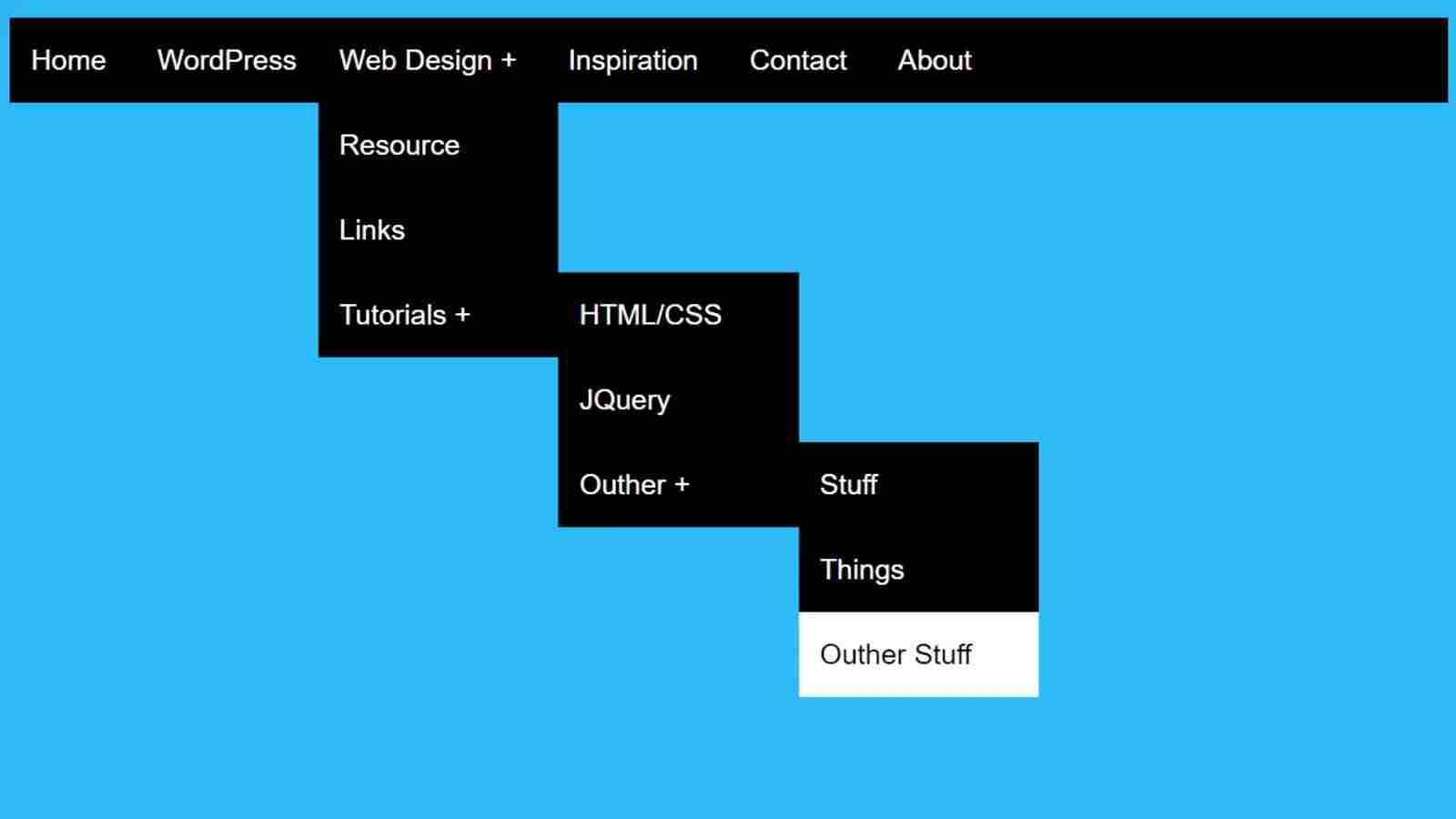

List menu displayed below the menu item when you select it
A pull-down menu generally displays a list menu that displays options when you press a specified position. This list menu is in list format, with each option displayed as a single item. To close the menu, you must confirm your selection by clicking or tapping the menu again.
Pull-down menus are primarily used in UIs such as forms and filters. For example, there is a pull-down menu for selecting a prefecture or a pull-down menu for selecting a date range.
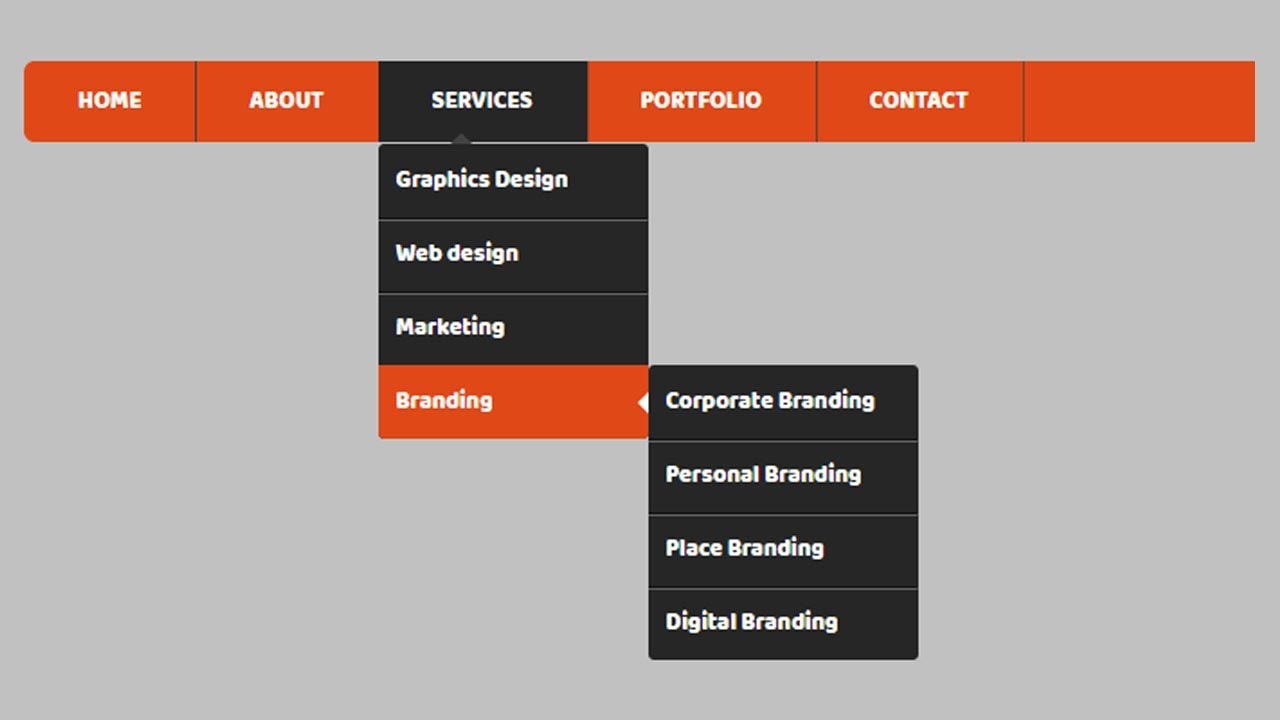
Difference with drop-down list
A pulldown menu and a dropdown list are essentially the same thing. However, they are called differently, and “pull-down menu” is generally more used.
The name drop-down list is often used for a UI component called a combo box in operating systems such as Windows, and the name pull-down menu is often used on web pages.

Difference between pull-down menu and radio button
Both pull-down menus and radio buttons display options, and they have in common that only one option can be selected. However, which one you should use depends on the number of options and the context. Below, we will explain in detail the differences between pull-down menus and radio buttons.
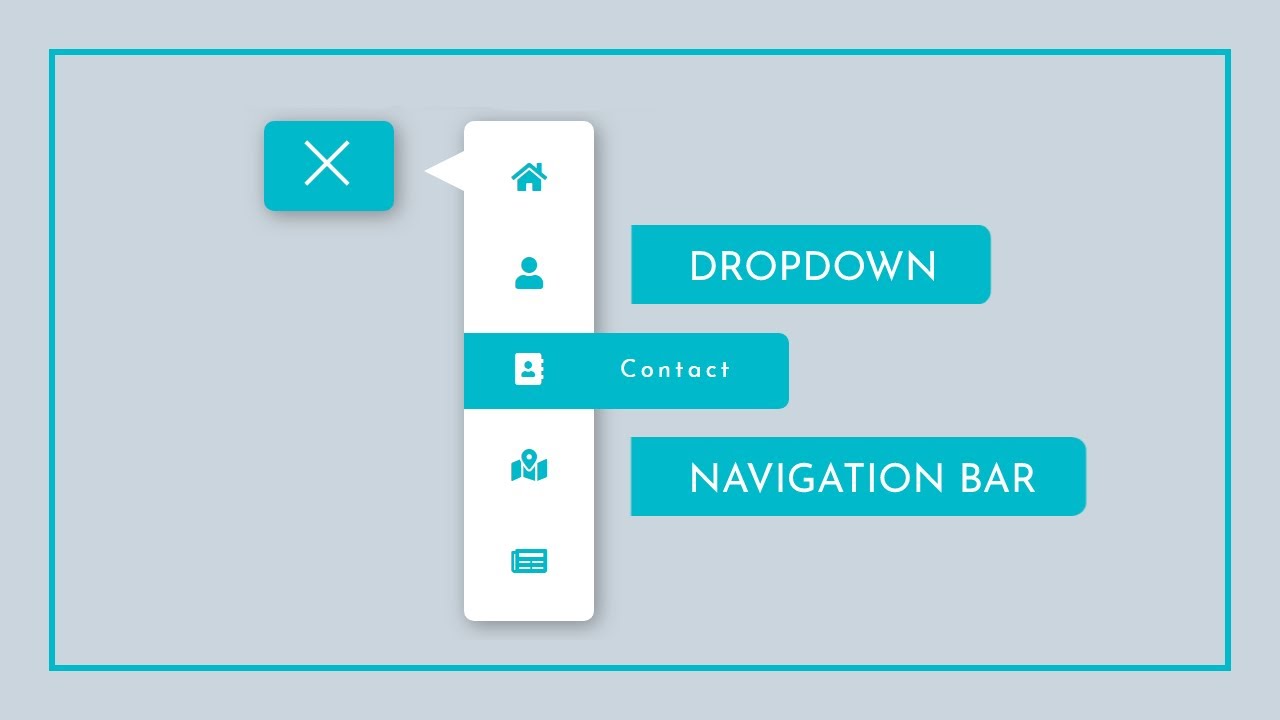
Same as choosing only one from multiple options
First, pull-down menus and radio buttons have in common that they are both UI components that select only one option from multiple options.
Should be used depending on the number of options
The difference between pull-down menus and radio buttons is that they should be used depending on the number of choices. Radio buttons are suitable when there are few choices. When there are only a few choices, radio buttons are relatively compact, making it easier for users to see the options and make a selection.
On the other hand, drop-down menus are suitable when there are many choices. It saves space by allowing you to display a large number of choices. Also, when there are many options, a pull-down menu is more convenient. When there are many choices, using radio buttons adds bulk to the screen and makes it less usable for users.
Examples of how to use pull-down menus and radio buttons
As a specific example, it would be appropriate to use a pull-down menu in the following cases:
On the other hand, it is appropriate to use radio buttons in the following cases:
For example, consider a response form that asks the question “How old are you?” If there are six options, such as “10s”, “20s”, “30s”, “40s”, “50s”, and “60s and over”, it is appropriate to use a pull-down menu. Because there are so many options, using radio buttons won’t fit on the screen and won’t create a smart design.
On the other hand, if there are only two options, such as “male” or “female,” it is appropriate to use radio buttons. Since there are few options, using radio buttons makes it easier to navigate and compare options.
In this way, it is important to use pull-down menus and radio buttons differently depending on the number of choices. By using them appropriately, you can create a form design that is easier to use.
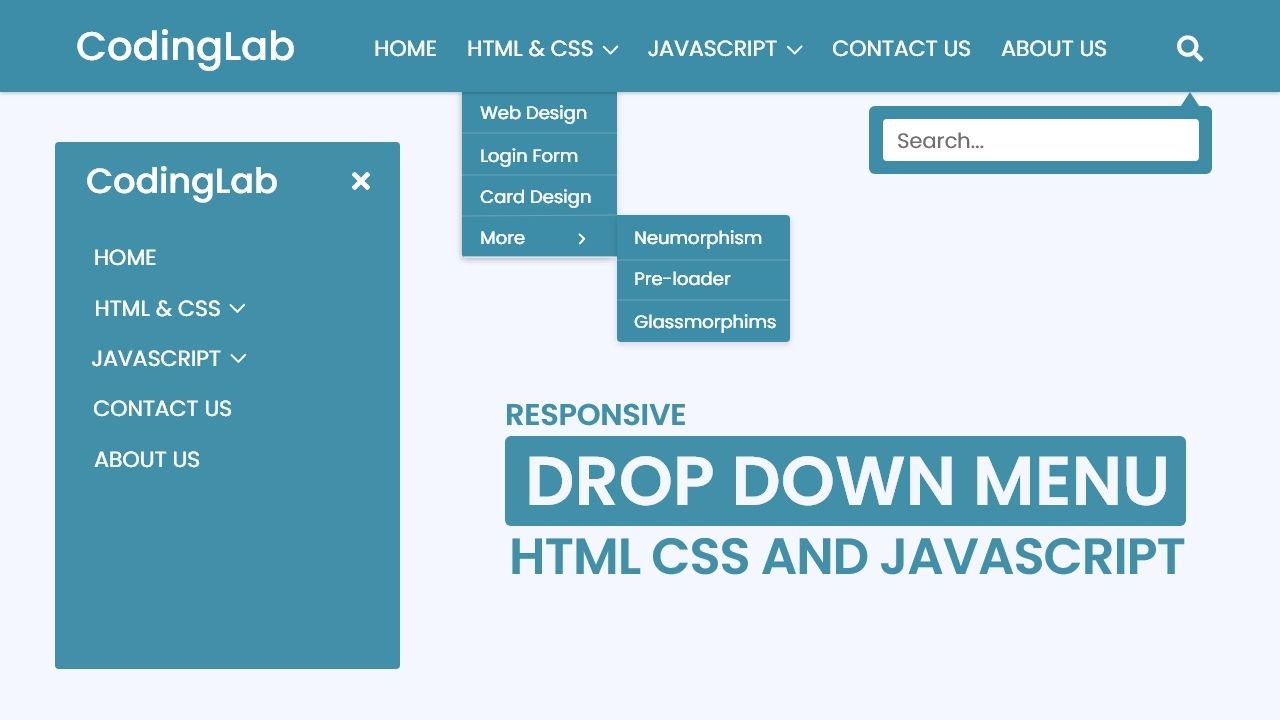
Advantages of using pull-down menus in forms
Pull-down menus are widely used as one of the input methods for web forms. Here we will explain the advantages of using pull-down menus in forms.
Improved user convenience
Drop-down menus are more convenient for users because they display a list of options as needed, rather than displaying too many options at once. Additionally, by using pull-down menus, users can save themselves the trouble of entering text into input fields. This makes input smoother and reduces user stress.
Prevent input errors
By using a pull-down menu, users don’t have to provide input themselves. This reduces the possibility of incorrect input.
For example, when using a text box, a user may accidentally enter a number or letter, but with a pull-down menu, the user simply selects from the correct selections and avoids making mistakes. It can be prevented.
In addition, pull-down menus have predefined choices and cannot input any other values, so if the user makes an incorrect input, an error message can be displayed. This allows you to prevent input errors in advance.
can offer many options
Dropdown menus are very useful for providing a large number of choices in one form. For example, if you have a large number of choices, such as country, state, or city, using a text box forces the user to enter the value with complete precision.
However, by using a pull-down menu, all the options are displayed in a list and the user can select the one that best suits their purpose. This allows users to reduce input errors and select desired choices quickly and accurately.
Additionally, pull-down menus can display choices hierarchically. For example, when displaying a pull-down menu of country names, you may want to display them all by continent, or if you want to display prefectures, you may want to display them by region, such as Kanto, Kansai, or Kyushu. can. By displaying the options hierarchically, the options are organized and the user can select the desired option without hesitation.
Compatible with touch operations such as smartphones and tablets
The design of drop-down menus on smartphones and tablets should be optimized for the device’s screen size. Vertical designs are usually preferred for smartphones and tablets.
Drop-down menus are form elements that are also suitable for touch operations such as smartphones and tablets. The menu automatically shrinks to fit the device screen size, eliminating the need for users to scroll and providing intuitive navigation.
Easy to manage data
Another benefit of pull-down menus is that they make it easier to manage your data. The items that can be selected from the pull-down menu are predefined and the user selects from them, reducing input errors. Also, when saving to the database, using pull-down menus increases data integrity.
For example, if a survey asks about your occupation, you can pre-determine your occupation by using the pull-down menu. Then, when a respondent enters “IT engineer”, there will be no typos caused by misspellings, etc. It also makes data aggregation easier, increasing the efficiency of data analysis.
Disadvantages of using pull-down menus in forms
Although pull-down menus have many advantages, they also have disadvantages. The following describes the disadvantages of using pull-down menus in forms.
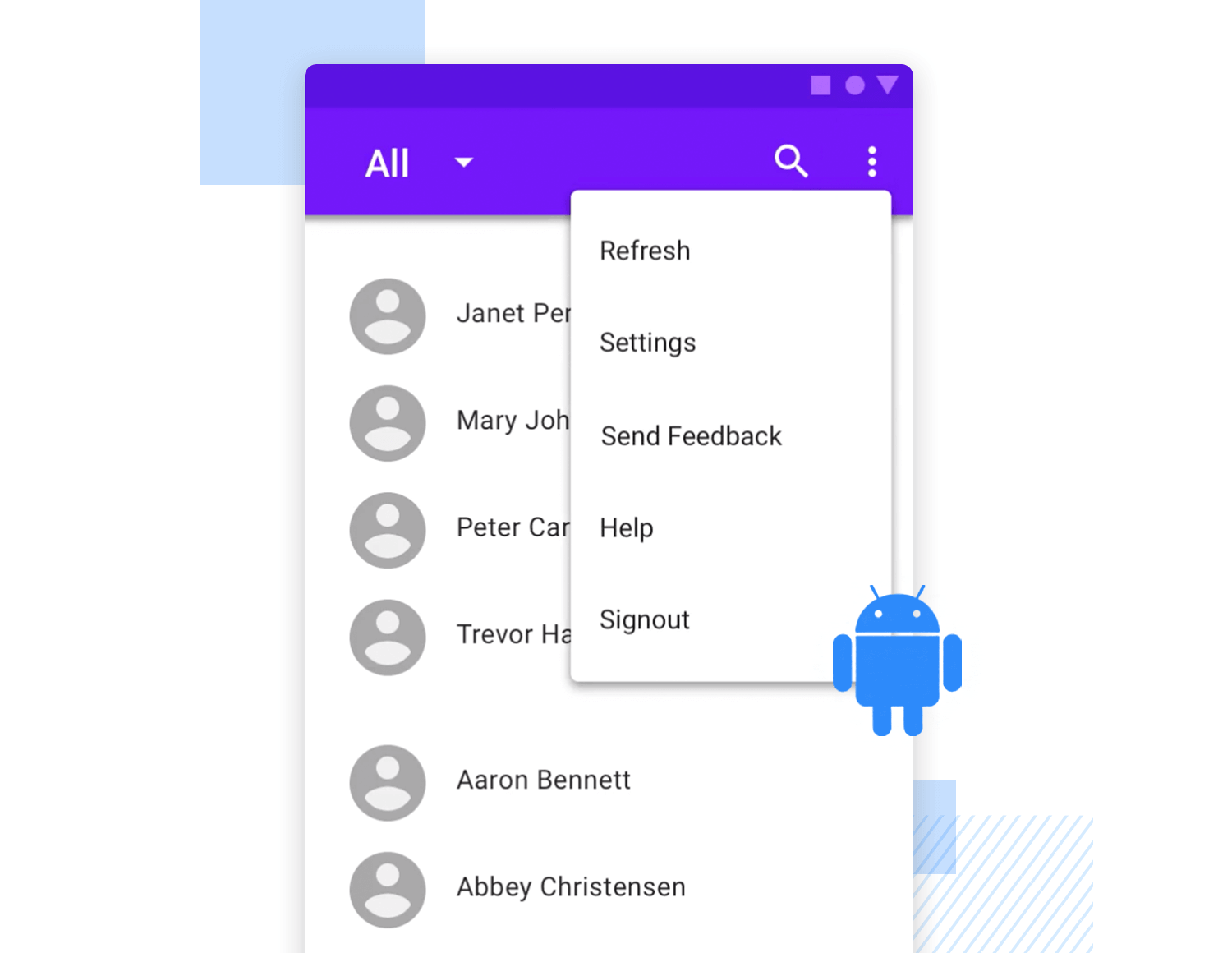
Scrolling is required when a long list menu is displayed.
If there are many choices in the pull-down menu, a list menu will be displayed. This forces users to scroll to find their choices. This can improve convenience when there are few choices, but can be inconvenient for users when there are many choices. Furthermore, as the list menu becomes longer, you will not only need to scroll, but you will also need to operate the scroll bar to search for options.
One way to avoid this problem is to split the choices. For example, if you want to display options by prefecture, you can display a list menu divided by region. You can also implement a function similar to a search form that only displays options that match the entered string.
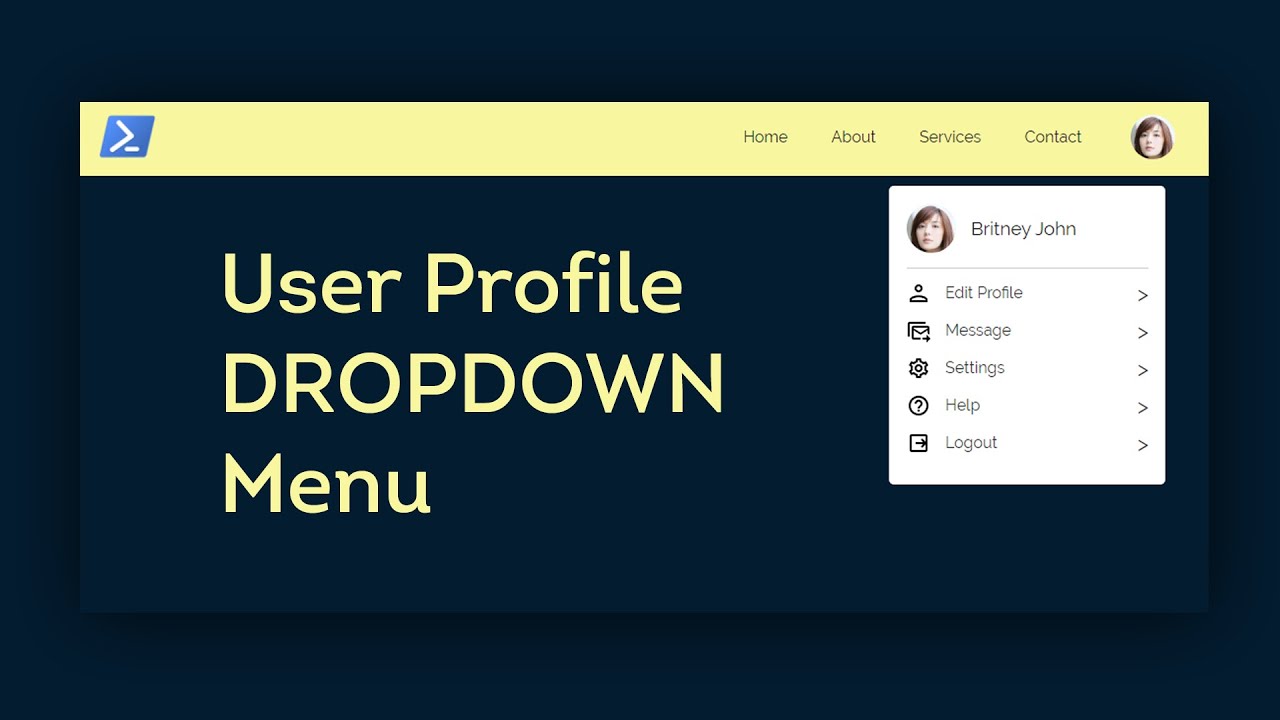
Too many options can make it difficult to search
When using drop-down menus, having too many choices can make it difficult for users to search. For example, if you display a drop-down menu to select an age, it may be difficult to search if there are options from teenagers to 100s.
One way to avoid this problem is to concisely summarize your options. For example, by setting the age options to 10s, 20s, 30s, 40s, 50s, and 60s or older, you can summarize the options concisely. It’s also helpful to place important choices first.
Improvements to the pull-down menu
Pull-down menus are an essential element in web forms, but when there are too many options, their usability can become problematic. As mentioned earlier, having too many options can require scrolling, making it difficult to find your choices. Below are some remedies for such problems.
Shorten list menu content
Long list menus in drop-down menus require users to scroll to find their choices. Therefore, it is important to shorten the list menu by reducing the number of choices.
For example, if you have a pull-down menu to select an age, instead of displaying all the options in 1-year increments, you can divide the content into categories such as teens, 20s, and 30s to improve the content of the list menu. It can be shortened.
Also, if there are many items to display in the pull-down menu, you can shorten the list menu by categorizing them. For example, if you want to display options by prefecture, you can display a list menu divided by region.
Be aware of the order of the list menu and place frequently used items at the top.
It is important to be aware of the order of items in the list menu of the pull-down menu. In particular, placing frequently used items at the top of the list menu allows users to quickly select the desired item.
For example, if you have a drop-down menu that displays country choices, you can place commonly used countries at the top of the list menu rather than alphabetically to help users quickly select the desired item. .
Equipped with an automatic selection function that preferentially displays items that are similar to the character string entered by the user.
By equipping the pull-down menu with an automatic selection function, items that are similar to the character string entered by the user can be displayed preferentially. This dramatically improves the user experience by reducing the amount of scrolling required for users to find the desired item.
The auto-select feature normally works every time a user types a character into a text field. Filters the items in the list based on the entered string and displays matches first. The auto-select feature eliminates the need for users to manually search for the desired item through a long list, significantly reducing time and effort.
For example, when a website displays a list of countries in a drop-down menu, the auto-select feature automatically filters the items in the list based on the country name entered by the user. You can easily select your country. Similarly, even if you have a large number of product categories, brands, regions, etc., automatic selection can help users quickly find what they are looking for.
Use the search bar to easily find what you’re looking for
By adding a search bar to your drop-down menu, you can make it easier for users to find what they’re looking for. Drop-down menus are more convenient because users can quickly find and select the item they need, regardless of the length of the list menu.
There are some caveats to using the search bar. First, it is important to place the search bar at the top of the list menu. This allows users to start searching right away without realizing the length of the list menu. Additionally, the search bar should automatically filter the list menu when you enter keywords. Additionally, you can add a function to the search bar that displays items related to the keywords entered by the user.
How to create a pull-down menu in Excel
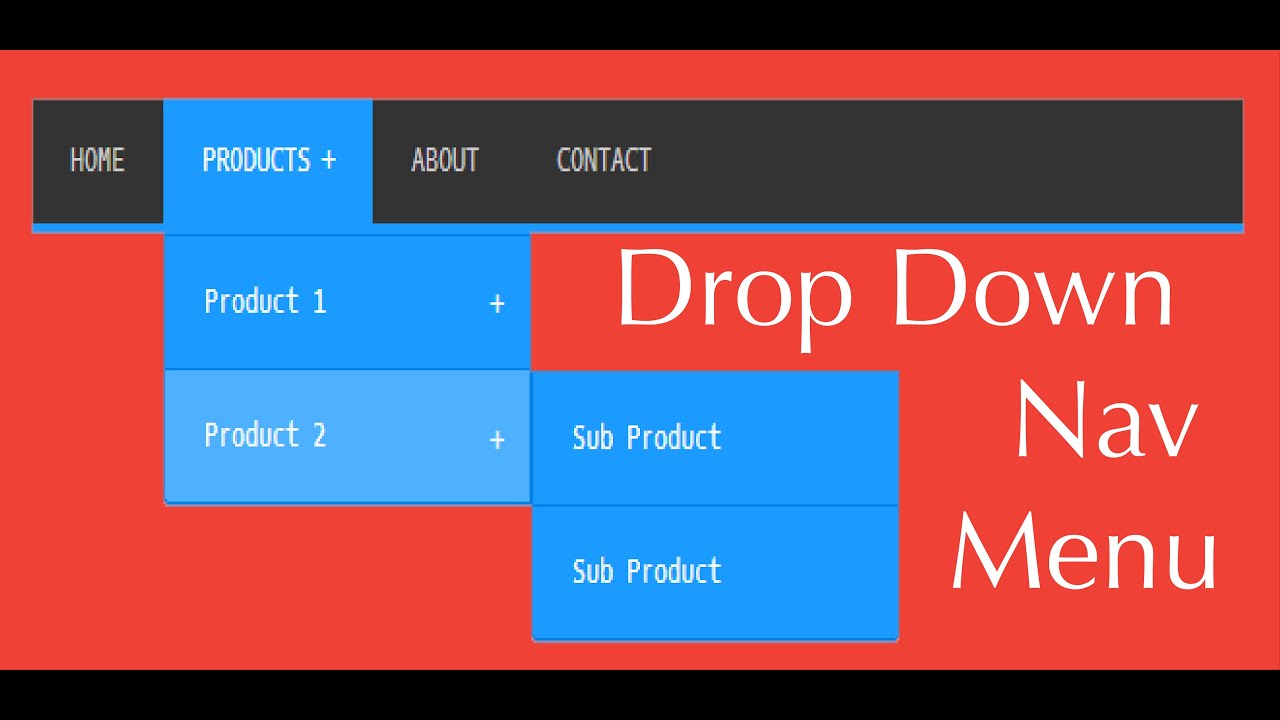
To create a pull-down menu, use Excel’s “Data Validation Rules”. Here we will explain the steps to create a pull-down menu in Excel.
Click on the “Data” tab at the top
Once Excel opens, click the Data tab at the top. This tab contains functions for handling data in Excel.
Click “Data Validation Rules”
Once you open the Data tab, click Data Validation from the Data Tools section on the left.
Select “List” for the input value type on the “Settings” tab
When the Data Validation window opens, select the Settings tab. Select “List” for the input value type on the “Settings” tab. This allows you to create a list of values to display in the dropdown menu.
Check “Select from drop-down list”
Select “List” on the “Settings” tab, then check the “Select from drop-down list” checkbox. This will cause a drop-down menu to appear.
Enter the content you want to display in the list in the original value field, separated by “,”
Finally, enter the content you want to display in the list in the Original Value field, separated by “,”. For example, if you enter “company employee, part-time worker, company manager, sole proprietor,” these items will be displayed in the pull-down menu.

How to create a pull-down menu in JavaScript
Here, we will explain how to create a pull-down menu in
JavaScript
. We will also explain the actual code, so please try using it.
Write JavaScript code along with HTML
First, write the following code in
the HTML
.
<select id=”mySelect”>
<option value=”1″>Option 1</option>
<option value=”2″>Option 2</option>
<option value=”3″>Option 3</option>
</select>
In this code, the id attribute is specified in the <select> element, and the choices are defined in the <option> element. Specify the value corresponding to each option in the value attribute.
Write code to dynamically manipulate pull-down menus using JavaScript
Next, write code to dynamically manipulate the pull-down menu using JavaScript.
// Get the DOM element of the pulldown menu
const select = document.getElementById(“mySelect”);
// Register an event listener to get the selected value
select.addEventListener(“change”, function() {
const selectedValue = select.value;
console.log(`Selected Value: ${selectedValue}`);
});
This code uses the getElementById() method to retrieve the <select> element, and the addEventListener() method to register an event listener that will be executed when the selected value changes. Inside the event listener, we use the value property to retrieve the selected value. Here, we are printing the retrieved value to the console, but you can do other things if you wish.
You can also add options dynamically.
You can also add choices dynamically using JavaScript. Add options using the add() method as shown below.
// Add options dynamically
const newOption = document.createElement(“option”);
newOption.text = “Option 4”;
newOption.value = “4”;
select.add(newOption);
This code creates a new <option> element with the createElement() method and sets values for the text and value properties. Then, use the add() method to add it to the <select> element.
summary
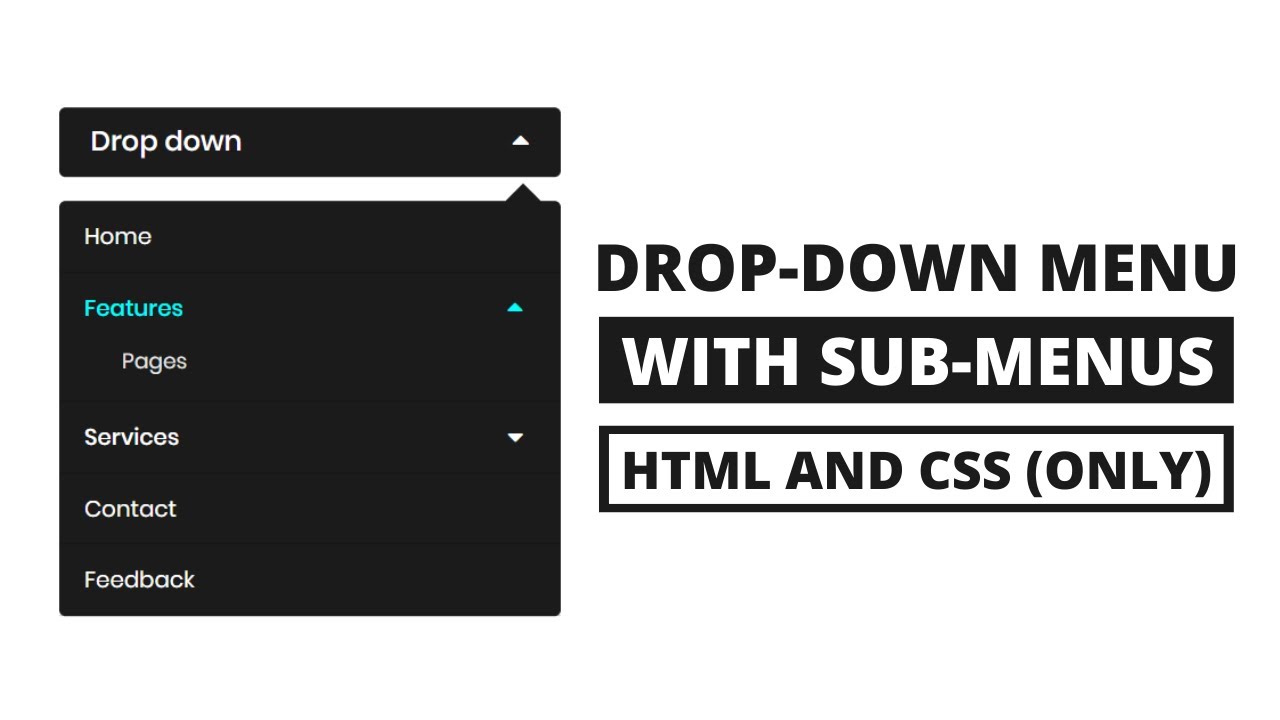
Pull-down menus are used in a variety of situations, including websites and applications. However, in order to improve usability and UI/UX, it is necessary to think about ways to improve the pull-down menu.
First, by keeping the list menu content short, it’s easier for users to quickly find the item they’re looking for. You can also make it more convenient by paying attention to the order of the list menu and placing frequently used items at the top.
Furthermore, by incorporating an automatic selection function, it is possible to preferentially display items that are similar to the character string entered by the user. This reduces the user’s input effort and enables smooth operation.
Finally, you can also use a search bar to make it easier to find what you’re looking for. This allows you to quickly find the desired item even in a pull-down menu with a large number of items.
We also introduced how to create a pull-down menu in Excel. Easily create a pull-down menu by clicking the “Data” tab at the top, selecting “List” from the data entry rules, and entering the content you want to display in the list separated by “,” in the original value field. You can.
A pull-down menu is a UI/UX element used in many situations. However, it is important to incorporate improvements to make it easier for users to use and operate smoothly. Please refer to the above method to create a more user-friendly pull-down menu.