

It is no exaggeration to say that there is not a day that goes by that we do not use the Internet to search in our daily lives and business settings. A browser is essential for searching the Internet. However, there may be some people who do not understand the meaning or overview of browsers.
In this article, we will explain the meaning, role, and types of browsers. We will also explain cookies and cache that often come with browsers, so please refer to them.
What is a browser?
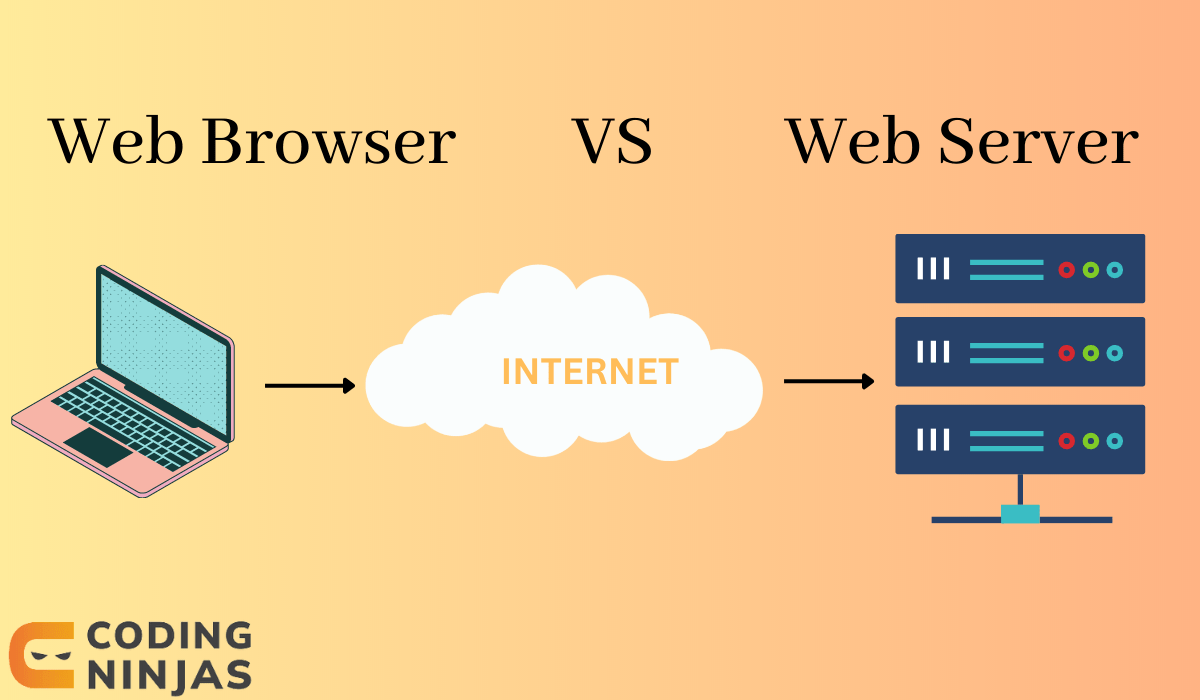
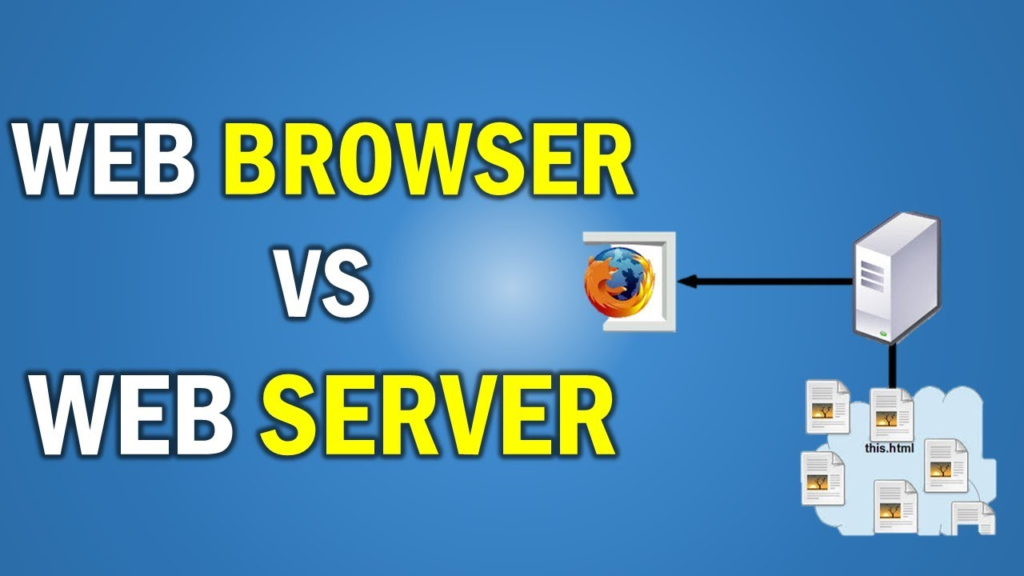
First, let’s start with an overview of browsers. A browser is software used to view homepages and websites.
There is also the term “web browser”, but web browser and browser are synonyms. The word browser is expressed in English as “browser,” but the root word is “browse.” In other words, the word browser has meanings such as “browsing” and “browsing.”
Typical examples of browsers include Google Chrome, Safari, and Firefox. Each browser has different characteristics, and Google Chrome has excellent coordination with various tools provided by Google, and Safari is a browser developed by Apple, which is familiar from iPhone, so it can be used on Android devices such as smartphones and tablets. Not available.
Therefore, it is important to use a browser that suits your situation and the tools you are using, such as in daily life or business situations.
The browser also has a bookmark function, so you can register frequently used websites, your favorite web pages, video and download URLs, etc., and access them with one click without having to enter them each time. It will look like this.
Role of browser
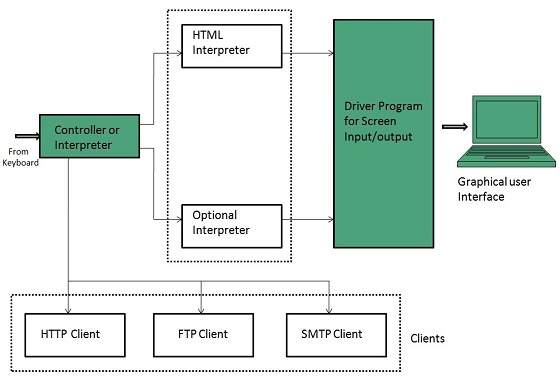
Up to this point, we have provided an overview of browsers. A browser has two main roles.
Display web page
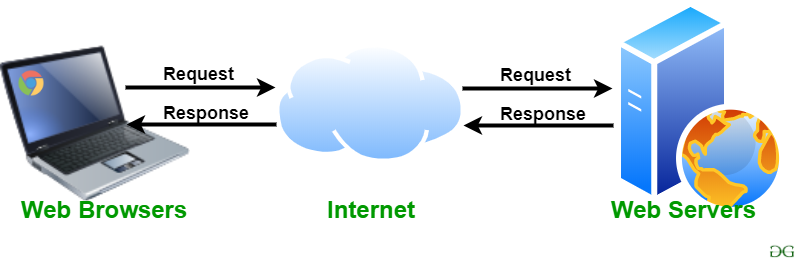
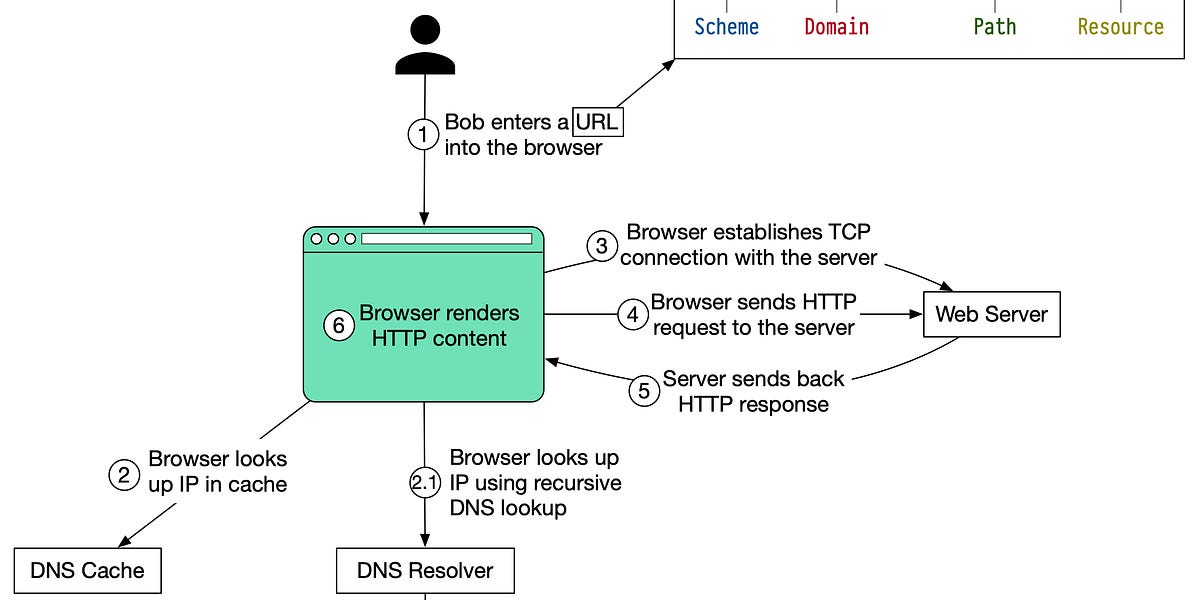
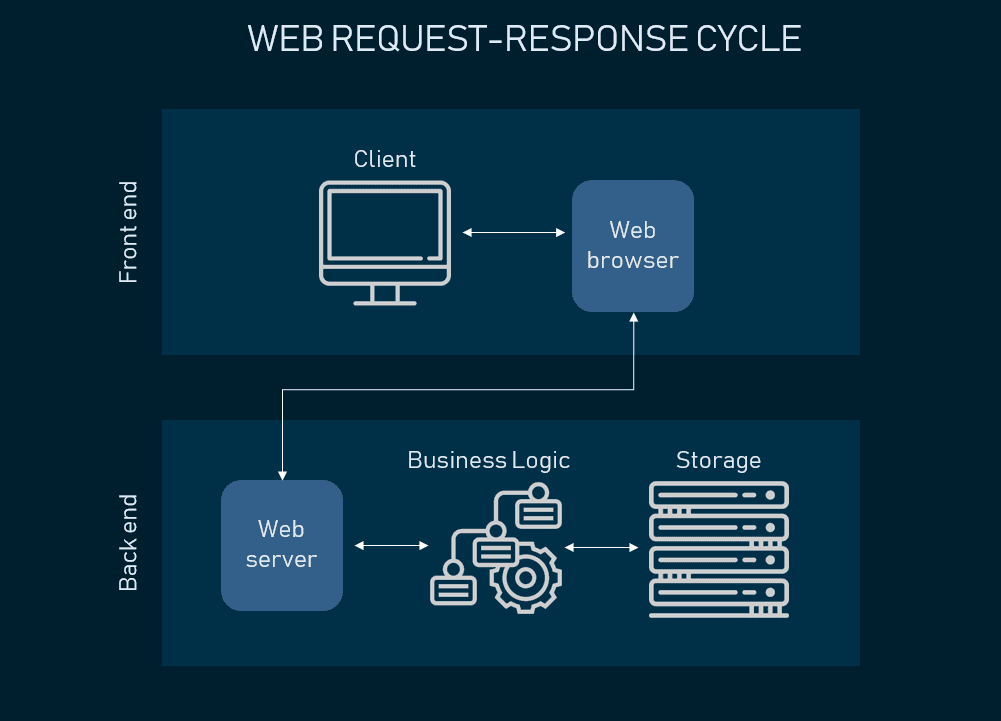
The browser is responsible for instantly loading the source code of a website and displaying the web page. Websites and homepages are constructed using many programming languages such as
HTML
,
CSS
, and
JavaScript
.
Even if someone with no programming knowledge were to read these, they would have no idea what was written. However, browsers have the role of converting programming languages into web pages so that even the general public can recognize them as web pages.
Additionally, after displaying a web page in a browser, users can enlarge or reduce the screen themselves. Using a smartphone as an example, you can easily zoom in or out by squeezing or spreading your fingers apart.
One of the functions of the browser is that you can add news sites and other sites that you visit on a daily basis to your home screen as shortcut icons.
In this way, browsers not only display web pages, but also have a variety of functions even after a web page is displayed.
Use each service on your browser
As mentioned above, browsers can display websites as “web pages.” In addition, you can also use various services on your browser.
Examples include video services such as YouTube and game apps that can be downloaded onto a browser.
In particular, when you install game apps, they consume space on your device, but game apps that can be played on the browser do not consume space on your device.
In addition, there are an increasing number of services that can be easily used with a browser, such as labor management systems and attendance management systems.
In this way, the browser also plays the role of a platform for each service. By effectively using the browser, you will be able to save time in your daily life by increasing your work efficiency.
Web browser type
When it comes to browsers (web browsers), there are various types of web browsers. Examples include:
Here, we briefly explain the characteristics of each web browser.

Google Chrome
Google Chrome is the world’s most popular web browser. Google Chrome is installed as standard on Android devices, and since Android devices have a higher market share than iPhones in the world, Google Chrome is widely used.
If you create a Google account and use Google Chrome, you can link it with Google Calendar, Gmail, etc., so it is recommended for people who regularly use Google services or who want to use multiple tools at once. Additionally, even services other than Google are compatible with Google Chrome in most cases.
You can also extend the functionality of Google Chrome for free using various add-ons. You can implement useful functions in your web browser, such as ad blockers, screenshot editing, and translation functions.
Additionally, we have a wide range of add-ons for engineers and developers, which will help you work more efficiently. The main add-ons include:
Google Chrome add-on for general users
Examples of add-ons for general users include:
uBlock Origin: Ad block
uBlock Origin
is a browser extension that blocks numerous advertisements displayed on websites. Affiliate and AdSense income will be effective on the target website.
Not only will there be fewer ads, but pages will display faster, contributing to improved usability.
Some ad blockers use a lot of memory, but uBlock Origin doesn’t use that much memory, so it won’t slow down other applications.
Awesome Screenshot: Take and edit screenshots
Awesome Screenshot
is a browser extension that allows you to easily take and edit screenshots of your PC screen. You can edit captured screenshots directly on Google Chrome without using any other image software.
Simple image editing, such as adjusting and cropping image size, inserting shapes and text, using the pen tool, and applying blur, can be done in one stop from taking a screenshot.
Awesome Screenshot also has a video capture function. If you want to capture a video for an unlimited time, you will have to pay, but you can do it for free for up to 5 minutes (as of October 2023).
Google Translate: Translation of overseas sites
Google Translate
is a browser extension that is very useful when obtaining information sources from overseas sites.
Google’s translation site has been available for some time, but by implementing this add-on, you can translate the entire page of the currently displayed overseas site by simply clicking on it, without having to go to the Google translation site.
After translation, you can switch between “original text” and “translation” from the menu bar, and languages other than the main language can also be displayed.
Google Chrome add-on for developers
Examples of add-ons for developers include:
Web Maker: Real-time code confirmation
Web Maker
is a live coding add-on that allows you to check the results of the code you write in real time.
You can proceed with your work while checking whether the code you are writing at the moment actually works and how it behaves. You can easily check it by writing the code in a file, saving it, and displaying it in Google Chrome.
HTML Error Checker: HTML error checking
HTML Error Checker
is an add-on that automatically detects coding mistakes. Detects excess or deficiency of start and end tags in HTML.
As front-end engineers who work on the front end get used to it, they tend to make careless mistakes such as forgetting to write the closing tag. It is used to discover small mistakes like this.
Lighthouse: Website performance measurement
Lighthouse
is an add-on that allows you to check five items, including the performance, accessibility, and PWA (Progressive Web Apps) compatibility of your website.
Since a new “SEO” item has been added to the extension, it is now possible to check internal SEO as well.
By implementing Lighthouse, you will be able to visualize these five items necessary for ranking high in search engines, and you will be able to create a website that always maintains the best performance.

Firefox
Firefox is a web browser with a distinctive fox and flame motif, developed and provided by the Mozilla Foundation. Firefox is an
open source
web browser that users can customize as they wish.
However, since the above-mentioned Google Chrome is also equipped with a wide range of add-on functions, it can be said that Google Chrome is easier to use even for beginners when considering the effort of customization.
Opera
Opera is a web browser that can be synchronized with computers and smartphones. On iPhone, it is used under the name “Opera Mini”.
A feature of Opera is that it has a function that can compress data. Therefore, it is recommended for people who want to use the Internet with less data traffic.
Safari
Safari is a web browser that comes standard with Apple products such as iPhone and Mac. In Japan, Apple products such as the iPhone have a high market share, so there are many people who use Safari on a daily basis. Safari is a web browser recommended for those who use iOS devices because it is easy to integrate with them.

Microsoft Edge
Microsoft Edge is a new web browser installed as standard in Windows 10, replacing Internet Explorer (IE). It supports HTML5 and is a lighter and faster web browser than IE.
In addition, many new features are installed, such as “Web Note” that allows you to take handwritten notes on web pages, a function to collaborate with the voice assistant “Cortana”, and central management of “Favorites”, “History”, “Reading List”, etc. Features are also available.
Although Microsoft Edge is extremely convenient, there are some additional differences from the previous Internet Explorer (IE), including:
Differences in overall design
The icons, buttons, and other parts of Internet Explorer (IE), which used to emphasize a three-dimensional appearance, have a unified flat design in Microsoft Edge.
Although the three-dimensional design of Internet Explorer (IE) gave websites a sense of luxury, it also felt heavy and bulky. However, in Microsoft Edge, by making these flat, the website becomes lighter and feels more nimble.
Differences in browser settings screens
In Internet Explorer (IE), settings were configured one by one from the gear icon in the upper right, but in Microsoft Edge, a list of items is displayed from the settings button. This greatly reduces the number of button operations required.
Differences in print screens
Microsoft Edge’s print screen displays the print settings screen and print preview on a single screen. This allows you to configure print settings while checking the print preview, making it possible to print without making mistakes such as accidentally oriented the document in the wrong direction.
Differences in right-click display menus
In Internet Explorer (IE), when you right-click, many unnecessary menus appear, causing confusion and confusion as to what the displayed items are used for.
However, in Microsoft Edge, these unnecessary menu displays are eliminated and the menus are reduced to about 2 to 4 items.
It has been reborn as a UI (User Interface) that is extremely simple and takes usability into consideration.
Extra edition: Internet Explorer (IE)
Internet Explorer (IE) is a web browser developed by Microsoft and used to be bundled as standard with PCs running Windows OS. From around 2000 to 2005, it boasted a market share of over 90% and was considered the de facto “standard web browser.”
However, development was discontinued after version 11 released in 2013, and a new successor web browser, Microsoft Edge, was introduced.
Windows 10 bundled both the first version of Microsoft Edge and Internet Explorer 11, but support for Internet Explorer will end as of June 16, 2022.
After that, it will no longer be officially available to obtain or install, and security programs and fixes will no longer be provided, so due to the risks, it is recommended that you stop using it immediately and move to a current web browser such as Microsoft Edge. Masu.
What to do with websites that can only be viewed with Internet Explorer (IE)
Although Internet Explorer (IE) is no longer available as a standalone web browser, it is still available as a component of Microsoft Edge.
Microsoft Edge is equipped with “IE mode”, which allows you to view legacy sites that can only be displayed in Internet Explorer.
However, this IE mode is also scheduled to be supported until 2029, and legacy site operators will need to gradually build websites that are compatible with current web browsers.
What is a tab browser?
Up to this point, we have explained the most popular web browsers. On the other hand, some people may have heard the term tab browser in the past.
A tabbed browser is a browser that has the ability to open multiple web pages (tabs) within one browser.
Before the advent of tab browsers, the only way to view one web page in one window (tab) was to display one web page in one window (tab). Therefore, it can be said that it was overwhelmingly inefficient compared to modern times.
However, all major modern web browsers are tabbed browsers, making it easier to search the Internet.
What are browser cookies?
Browsers and cookies are inseparable. Cookies are information stored in the web browser on your device. Here we will explain about cookies.
Situations where cookies are used
Cookies are used in a variety of situations. By using cookies, you can still log in even if you forget your ID or password.
We will explain in detail two typical situations in which cookies are used: “automatically inputting names and addresses” and “cart functions.”
Automatically enter name and address
Have you ever had your name or address automatically entered on a login screen or input form? They involve cookies.
Cookies remember previously entered name and address information and are automatically entered in similar cases.
This has the advantage of being able to log in even if you forget your password, and saving you the hassle of filling out input forms.
Cart function
Cookies also work on web pages that have a cart function, such as Amazon and Rakuten. For example, let’s say you added a pillow to your cart the day before, but you didn’t buy it that day.
However, even if you visit the shopping site again the next day, the pillow will remain in your cart if cookies are enabled.
This is because the cart functionality and cookies work together. This is especially useful when you want to buy in bulk or when you want to buy something you want now on a sale.

What is cache?
Earlier, I explained about cookies. However, some people may not know the difference between cache and cookies.
Cache
is a function that stores information such as images and text on web pages. The difference with cookies is that cookies are a function that automatically fills in the information after it is saved, whereas cache is a function that speeds up the loading speed of web pages.
It is also possible to delete cookies and cache. The web browser you are using is always equipped with a function that allows you to delete cookies and cache, so if you do not want to leave your information, you may want to consider deleting it.
summary
In this article, we have explained about browsers. A browser is the software that allows you to view websites over the Internet.
Browsers are also called web browsers, and representative examples include Google Chrome and Safari. In addition, effective use of web browser cookies can improve the efficiency of your daily work and help you in your daily life.
Why not start by determining which web browser you are comfortable using?