
:format(webp)/cdn.vox-cdn.com/uploads/chorus_asset/file/24199644/CleanShot_2022_11_15_at_15.29.16.png?resize=2400,1453&ssl=1 "What is NotionAI? Explains how to use it, what you can do, and precautions when using it.")
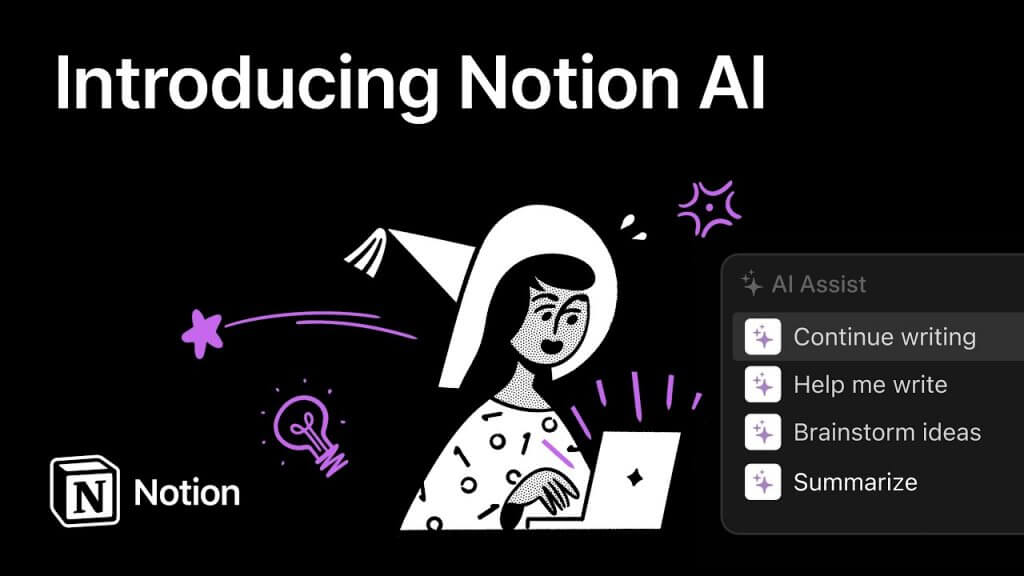
Notion AI is an AI assistant tool that can be used on Notion, a cloud tool that brings together all the tools necessary for office work.
In this article, we will explain how to use Notion AI, the tasks it can handle, things to be aware of when using it, and the differences from “ChatGPT”, which is also a hot topic of tools that utilizes AI.
What is Notion AI?
Notion AI’s “Notion” is an all-in-one type cloud tool that brings together functions necessary for office work such as text creation and schedule management. Developed and provided by Notion Labs in the United States. Almost all the tools you use for your business are in one place, so you don’t have to use multiple tools.
In addition, Notion is multi-device compatible, so it can be operated not only on a computer but also on a smartphone. The Japanese version (official version) was announced in November 2022.
Notion AI is an AI assistant tool that can be used on Notion. It is a Notion-specific tool that supports a wide range of tasks such as text creation, translation, and programming drafts. It will be released in February 2023 and will be available in English as well as Japanese.
Please note that in order to use Notion AI, a usage fee is required in addition to the Notion fee. Detailed pricing will be explained later.

Source:
Notion
What is the difference between Notion AI and ChatGPT?
Notion AI is a tool that uses AI to create sentences and tables. It is also compared to ChatGPT, which also uses AI to create posts, tables, etc. for SNS and blogs.
We will introduce the differences between Notion AI and ChatGPT, focusing on algorithms, functions, and prices.
Differences in algorithms
Notion AI and ChatGPT are both artificial intelligence using natural language processing technology, so you can instruct tasks using everyday language without writing special code. However, the algorithms for learning and creating sentence patterns are different.
Notion AI’s algorithm statistically learns sentence patterns based on text data. On the other hand, ChatGPT creates sentence patterns based on existing data, but also on new conversations.
Because the algorithms are different, even if the same instructions (prompts) are given, the resulting sentences will be different.
Differences in functionality
In addition to text creation, Notion AI implements a wide range of functions that can be used in business settings, such as schedule management, task management, and brainstorming ideas. The specific functions of Notion AI will be explained later.
On the other hand, ChatGPT supports text-based functions such as document creation, translation, and summarization, but it does not have management functions such as schedule management. Since ChatGPT is limited to interactions through chat forms, it is difficult to use it as a management tool.
Also, the usage scenarios are different. Notion AI is a tool specialized for use in business situations. On the other hand, ChatGPT can be used not only for business, but also in a wide range of situations such as private life, education, and entertainment. He is also good at small talk, so you can use him without setting a specific purpose.
Fee
Notion has a free plan that allows you to invite up to 10 guests. In addition to the free plan, there are three paid plans, each with different features.
| plan | Monthly fee (monthly fee when paying annually) | Features |
| free | free | ● No limit on the number of blocks for individuals ● Basic page analytics ● Up to 10 guests can be invited |
| plus | $10 ($8) | ● Unlimited file uploads ● 30 days of page history ● Invite up to 100 guests |
| business | $18 ($15) | ● Unlimited file uploads ● 90 days of page history ● Invite up to 250 guests ● Advanced page analytics |
| enterprise | Inquiry required | ● Unlimited file uploads ● Unlimited page history ● Invite up to 250 guests ● Workspace analytics ● Advanced security settings |
Notion AI is a feature that can be used in addition to Notion. If you use the free plan Notion, it costs $10 per month per person (about 1,500 yen), and if you use the paid plan Notion, it costs $10 per month per person, but if you pay annually it costs $8 per month (about 1,200 yen). .
On the other hand, ChatGPT has two types of plans to choose from: Free plan and Plus plan. The Free plan is equipped with GPT3.5, a natural language processing model, and can be used for free and without limit in principle. The Plus plan is equipped with GPT4, which has faster processing speed, and allows you to use browsing and plug-ins for $20 per month (approximately 3,000 yen).
*Calculated based on prices and exchange rates as of October 25, 2023
Can I use it for free? Notion AI pricing
Notion has free and paid plans, but Notion AI only has paid plans. If you want to use Notion AI, a dedicated AI support tool for Notion, you will need to pay $10 per month per person ($8 per month if paid annually).
In addition, Notion itself is a service that allows up to 10 people to use it at the same time even on its free plan (100 to 250 people on paid plans), but Notion AI’s pricing structure is per person. Therefore, the more users there are, the higher the cost will be.
Let’s consider a case where 50 people use the Plus plan, each using Notion AI. Notion costs $10 per month ($8 per month if paid annually) and Notion AI costs $10 per month x 50 people ($8 per month x 50 people if paid annually) and costs $510 per month ($408 per month if paid annually).
Notion AI has a free trial plan
Notion doesn’t have a free plan, but you can use up to 20 free trials per account. There is no set period, and you can use it for free as long as you complete 20 tasks or less after creating an account.
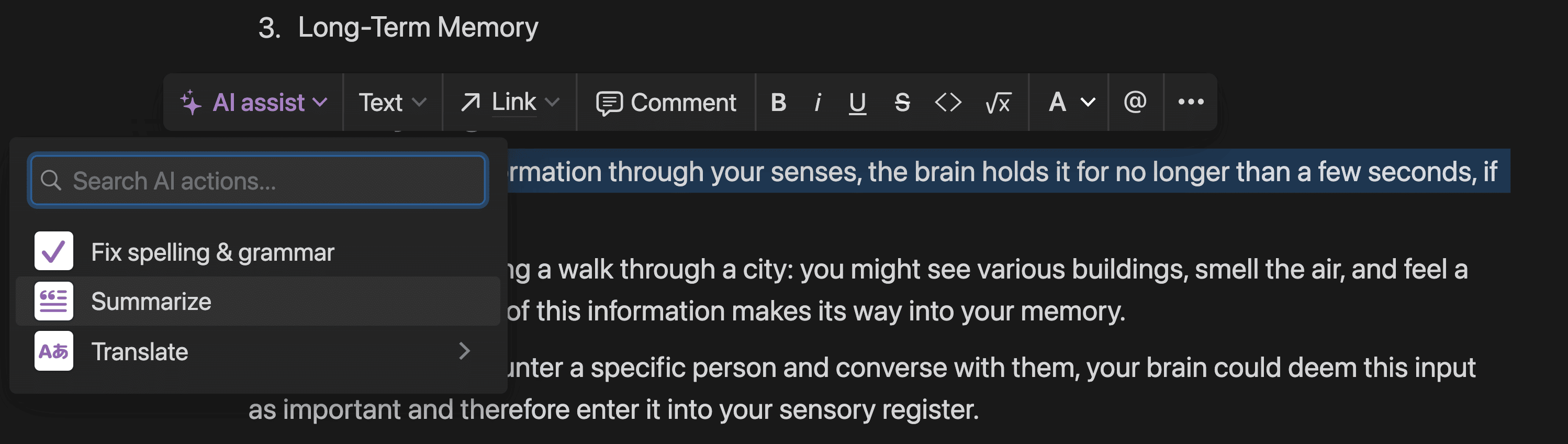
You can check your Notion AI usage status in your account. Click “Settings” on the left side of Notion’s workspace.
Source:
Notion
“My Account” will open in the center of the screen.
Source:
Notion
When you select “Upgrade” in My Account, the usage status of Notion AI will be displayed as shown below. When it reaches 100%, click “Purchase AI” and switch to a paid plan.
Source:
Notion
Notion AI pricing
The usage fee for Notion AI is $10 (approximately 1,500 yen) per month. However, if you subscribe to Notion’s paid plan, you can choose to pay annually. Annual payments are a bit cheaper at $8 (approximately 1,200 yen) per month.
By registering with Notion AI, you will be able to:
*All as of October 25, 2023
How to get started with Notion AI
To use Notion AI, first create a Notion account. Visit
Notion’s official website
and click “Download Notion for Free.” If you already have a Notion account, clicking will automatically take you to your Notion workspace.

Source:
Notion
Select a plan, enter your name and email address, and create an account. Once your account is created, your workspace will be displayed. Click anywhere in the workspace to display a frame containing your prompt.
Source:
Notion
From now on, you can access your Notion workspace simply by logging in.
How to use Notion AI
The workspace has a faint pattern that looks like a volleyball. Click anywhere below it. The following characters will be displayed dimly.

Source:
Notion
To use Notion AI, press the spacebar. If you are not using AI, enter a half-width slash “/” or a full-width semicolon “;” instead of the space key before entering the command.
When using Notion AI in the free trial, the limit is 20 times, so think about where you will use AI before pressing the space key.
Press the space key to display the following command field.

Source:
Notion
Enter the command where it says “Ask AI to create a document…” or select it from the menu. Tasks are accomplished using Notion AI.
What Notion AI can do
Using Notion AI provides benefits such as improving the quality of your writing compared to regular Notion. We will introduce the main usage methods.
writing
Writing sentences is a feature that Notion AI excels at. If you enter the theme and purpose of the text you want to write (New Year’s greetings, information on company relocation, SNS posts, etc.), appropriate text will be created.
Blog article creation
By entering the theme or subject of the article you want to write, you can create the article to be published on your blog. I asked him to write a blog article on the theme of “November Events.”

Source:
Notion

Source:
Notion
Blogs have been created on three topics: Culture Day, Christmas Market, and Marathon.
If you want to dig deeper into each topic and write a longer article, click “Make it longer”, and if you want to increase the number of topics, click “Write more”. If you don’t like the text itself, or if you want to write the text on a different theme, click “Restart”.
Creating SNS posts
It also supports the creation of short sentences for posting on SNS. I asked someone to post about how to choose Shine Muscat on SNS.
Source:
Notion
/important-lab-safety-rules-608156_final-1c1f91b6f49f4ff8868d303037b88e85.png)
Source:
Notion
You can also add hashtags, which makes it convenient to post as is.
novel writing
Notion AI’s writing menu is extensive.

Source:
Notion
In addition to “press releases,” “creative stories,” and “essays,” we also have items that can be used directly in business, such as “poetry,” “sales emails,” and “recruitment emails.” When you need a story-like text like a novel, try using “creative story” or “essay.”
We chose “Creative Story” and asked them to write a sentence on the theme of cats and baseball.

Source:
Notion
Source:
Notion
Proofreading/Summary
It is also possible to proofread texts that you have already created. Press the space bar, select “Correct spelling and grammar,” then type the text you want to proofread.
Also, if the sentence is long, press the space key, select “Short”, and enter the sentence. If you want to create a more concise style without changing the text itself, select “Rewrite to simpler expressions.”
If you want to change the tone, press the spacebar and select “Change Tone.” You can choose from five tones: formal, casual, candid, dignified, and friendly. Choose an appropriate tone depending on your relationship with the other person and the situation in which you are posting the text.
Creating a to-do list
If you press the Spacebar, click More, and select Create ToDo List, you’ll see the message “Create a ToDo List for:” in your workspace. For example, write down things that can be expected to involve multiple tasks, such as preparing for an in-house sports day or settling travel expenses.
Note that creating a to-do list can also be used in regular Notion. However, checkboxes will be displayed as shown below, and you will have to list them yourself.

Source:
Notion
If you want to take care of everything from list creation, use Notion AI.
translation
Notion AI also supports translation. We support 14 languages: English, Korean, Chinese, Japanese, Spanish, Russian, French, Portuguese, German, Italian, Dutch, Indonesian, Filipino, and Vietnamese.

Source:
Notion
*As of October 25, 2023
Sequence diagram creation
With Notion AI, you can create sequence diagrams used when designing the flow of program processing. However, in order to use Mermaid notation, give instructions such as “Please tell me 〇〇. Please represent it in a sequence diagram using Mermaid notation.”
Creating programming drafts
You can also create a draft of the program by specifying the programming language and the content you want to implement. For example, please specify the language and content, such as “Create a program to perform 3-digit multiplication in C language.”
brainstorming ideas
If you can’t think of an idea, try selecting “Brainstorm Ideas.”

Source:
Notion
If you enter a theme after a colon (:), ideas that fit the theme will be listed.
For example, you can brainstorm ideas related to marketing, such as “How to increase the open rate of email newsletters,” “How to increase sales on EC sites,” and “Marketing measures using AI.”
You can also get tips on effective marketing from the following guides: An easy-to-understand summary of BtoB marketing procedures. Please download it for free and use it.
Table creation
Notion AI allows you to convert information entered in text into a table. Enter the information you want to include in the table as bullet points, like a memo, and then instruct the user to “please summarize this information in a table.”
You can also use text to specify what to include in the table without having to create notes. For example, if you say, “Please list 5 business chat services and summarize their features and usage fees in a table,” it will be displayed as a table. Please feel free to use it for creating materials such as presentations.
Setting blocks on multiple pages
If you select “Custom AI Block”, you can place as many spaces as blocks to write prompts.

Source:
Notion
When using Notion AI for meeting minutes, it is useful to embed an AI block where you input prompts.
Points to note when using Notion AI
When using Notion AI, please be aware of the following points.
We will explain the precautions for each.
Information is not always correct
Notion AI works according to your prompts, but the information displayed is not always correct. It’s possible that you didn’t understand the prompt correctly, or that the information provided in what you see is incorrect.
However, Notion AI is not the only platform where information may be incorrect. Other generative AI tools, such as ChatGPT, may also produce incorrect results due to misunderstanding prompts or incorrect sources.
Notion AI is simply a tool used to reduce the burden of business work. Get in the habit of checking the authenticity of the displayed information yourself.
Old information may be output
Notion does not publicly state the freshness of the information it uses. Therefore, it is assumed that the information used by AI may not be the latest information. It is important to check the authenticity of the information provided by Notion AI.
In addition, when I asked Notion AI, “How much information can I refer to?”, the answer was “The information is the latest.”

Source:
Notion
Be careful about outputting harmful content
Notion AI may display violent or obscene information. Also, certain biases and discriminatory opinions may be displayed. Please do not use all displayed information as is, but check to make sure it does not violate compliance before using it.
Notion AI is more convenient! 5 collaboration tools
Notion AI is a useful tool, but it can be used even more conveniently by linking it with other tools. We will introduce how to use tools that can be linked and what is possible by linking with Notion AI.
BookNotion
BookNotion
is a tool that automatically saves Kindle highlights to Notion. If you highlight a phrase that interests you and share it with Notion AI, not only the highlighted part but also the book title and author name will be saved in Notion AI.
If you add tags such as “greetings” or “ideas” to your text, you can retrieve only the information you need with a tag search. For example, when creating a business letter, you can use texts saved in BookNotion as seasonal greetings. It is also a useful tool for generating ideas and improving writing skills.
ChatGPT to Notion
ChatGPT to Notion
is a Chrome extension that allows you to migrate your ChatGPT conversations to Notion with one click. Conversations that are migrated will be saved as files in Notion, so if you want to keep conversations with ChatGPT, use ChatGPT to Notion to save them.
If you want to keep all of your conversations with ChatGPT, select “Save full chat,” or if you want to keep only part of them, click the pin icon displayed next to the chat and select “Save.”
Notion Slides by Wunderpresentation
Notion Slides by Wunderpresentation
is a Chrome extension that displays Notion workspace pages as slides. By linking Notion Slides by Wunderpresentation, you can use materials and sentences created with Notion AI as slides like PowerPoint.
Compared to PowerPoint, it has simpler functions and design. However, the materials created with Notion AI can be displayed as slides, reducing the time it takes to create presentations and other materials.
zapier
zapier
is a tool that allows you to manage information from Slack, Salesforce, etc. with Notion. Notion AI is a useful business tool, but businesses need tools other than Notion. For example, we will utilize communication tools between teams and sales management tools.
By linking zapier and Notion AI, you can establish Notion as an information hub. By managing advertising metrics, years, and analysis results all in Notion, you can save yourself the trouble of copying and pasting information.
Typeform
Typeform
is a tool for creating surveys and online forms. By linking with Notion AI, you can aggregate and analyze survey results obtained with Typeform in real time with Notion.
Another benefit is that survey results can be shared within the Notion team. Team members can access it whenever they need it, making it easier to utilize survey results as a corporate asset.
Summary: Learn about the features of Notion AI and use it for your business
Notion AI is a tool that can be used in business situations. It can be used for multitasking such as writing, proofreading, and managing schedules, which helps reduce your workload.
In addition, by linking with other tools, you can use it even more conveniently. Let’s understand the characteristics of Notion AI and use it for business.