

Illustrator is a graphic tool provided by Adobe. It is mainly used by web designers as it provides a wide variety of templates, from basic image creation to advanced illustration creation.
Therefore, in this article, we will explain the overview and basic information of Illustrator, and introduce what you can do with Illustrator. We will also explain the basics of how to use Illustrator, as well as the differences between it and Photoshop, a tool from Adobe, so please use this as a reference.
What is Illustrator?
Illustrator
is a graphic design tool provided by Adobe. Adobe offers the “Illustrator Plan,” which allows you to use Illustrator alone, as well as the subscription-type “
Adobe Creative Cloud
,” which allows you to use
Photoshop
,
Lightroom
, etc. provided by Adobe.
I will explain the details later, but Illustrator allows you to create logos, images, and pictures (illustrations). It is the most well-known graphic design tool available in Japan, and is mainly used by people involved in graphic design, such as web designers and people in charge of mass advertising.

“Illustrator” also exists as a profession.
As mentioned above, Illustrator is a graphic design tool. However, since “illustrator” exists within the profession, there may be quite a few people who think of it as a mixed term.
As a professional illustrator, your job is to draw the best illustrations for orders received from businesses. The types of illustrations I draw are extremely diverse, from characters that appear in games to illustrations for picture books, posters for magazines and advertisements, and more.
Additionally, in almost all cases, it is necessary to learn Illustrator to work as an illustrator. Some Illustrator software also offers the “Illustrator® Creator Certification Exam,” so if you want to become an illustrator as a profession, why not consider taking the above exam?
In summary, Illustrator is a tool provided by Adobe, and the difference is that professional illustrators draw illustrations. This article provides an overview of the tool Illustrator and how to use it.

What you can do with Illustrator
Up to this point, we have explained the basic information about Illustrator. From here, I will explain the following three typical things you can do with Illustrator.
- creating a logo
- creating a picture
- Creating diagrams (diagrams)
Let’s look at each in turn.
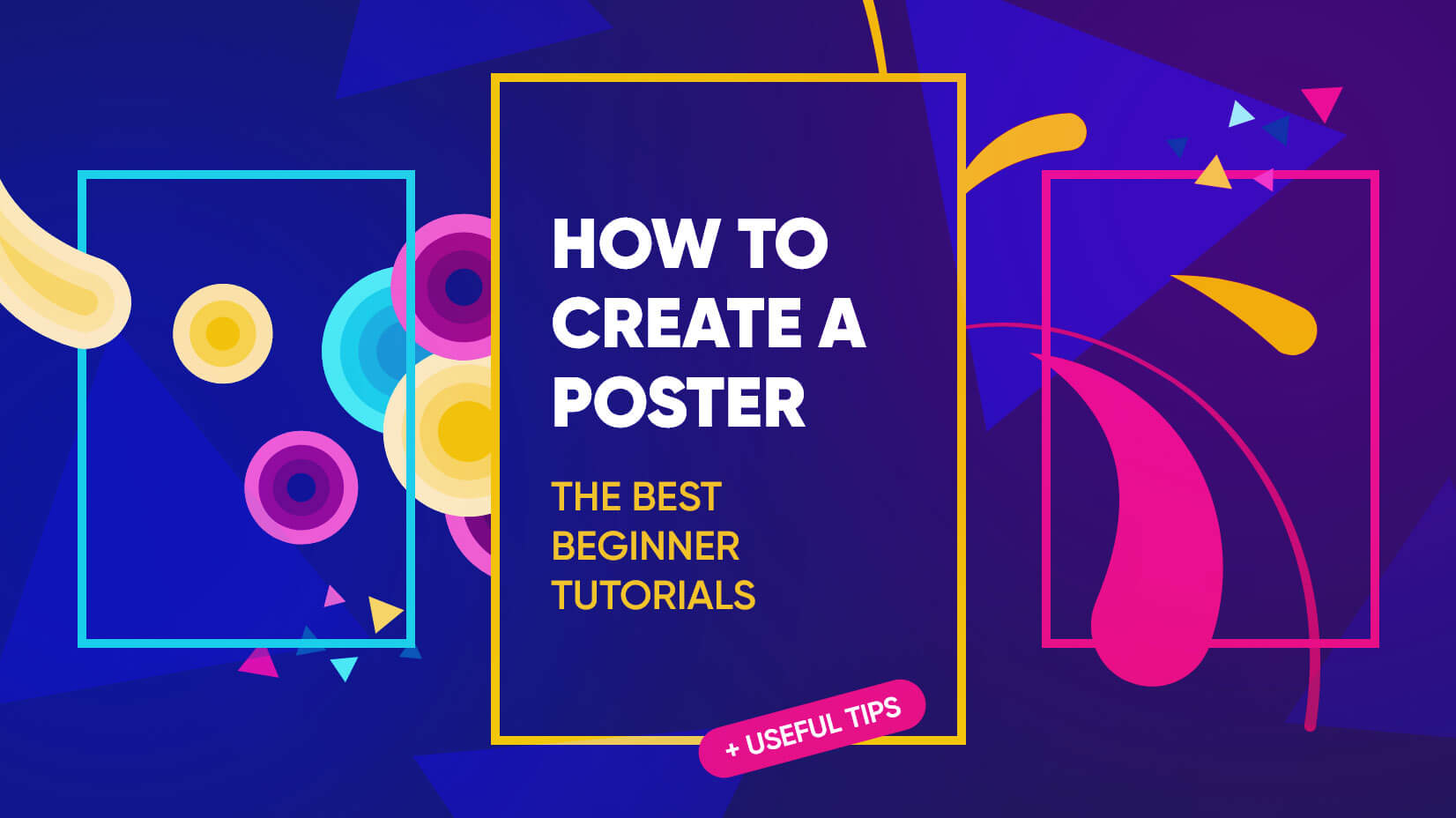
logo creation
First, create a logo. You can create a logo for use on
your homepage
, business cards, and flyers. Illustrator is equipped with basic functions such as decorating text and drawing illustrations, and it also supports printing colors. You can also use
Adobe Fonts
, which has over 20,000 fonts, so you can turn your ideas into reality.
creating a picture
Illustrator also allows you to create pictures. You can combine shapes and pen tools, and draw illustrations intuitively using a mouse. By creating a picture, you can use it for web design, small store signs, printed matter, etc.

Creating diagrams (diagrams)
Illustrator comes with a variety of shapes such as stars, ovals, and rectangles. Therefore, it is possible to create diagrams and illustrations using them. For example, you can use Illustrator to create illustrations when you want to combine multiple items into one page, or to convey information that is difficult to convey in words.

Illustrator overview
So far, we have explained the overview of Illustrator and what you can do with Illustrator. From here, we will introduce the following three features of Illustrator.
- Unlimited access to over 20,000 fonts
- Over 350 templates are available
- Basic fee
Let’s look at each in turn.
Unlimited access to over 20,000 fonts
Illustrator gives you unlimited access to over 20,000 fonts published by Adobe Fonts. In addition, these fonts can be used not only on the web, but also in printing, so you don’t have to stress out when designing.
With all kinds of fonts available, you will be able to create the design you want.
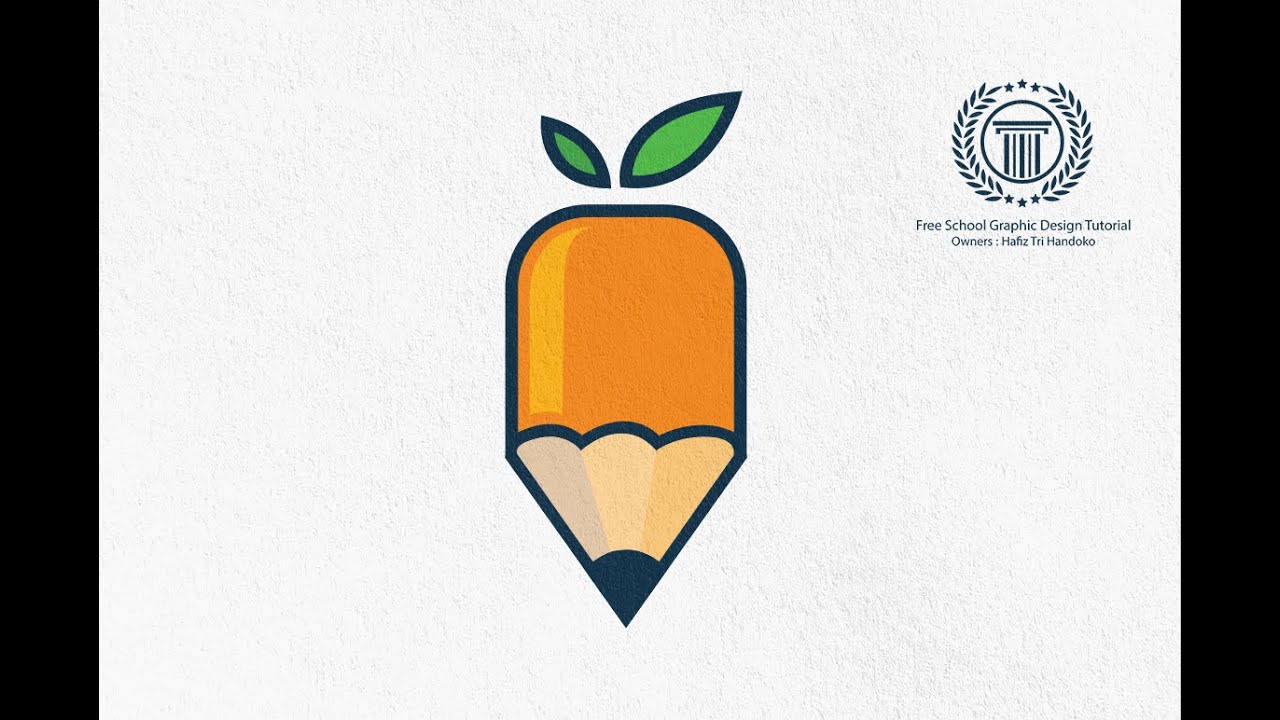
Over 350 templates are available
Illustrator comes with over 350 design templates. It is also possible to combine design templates, which is useful for creating business cards, logos, and images.
Basic fee
Illustrator is available in the following four plans.
- Adobe Illustrator standalone plan [for individuals]: 2,728 yen per month (tax included)
- Creative Cloud Complete Plan [For individuals]: 6,248 yen per month (tax included)
- For students and faculty: 2,178 yen per month (tax included)
- Business version: 4,158 yen per month (tax included)
All plans other than the Adobe Illustrator single plan above are complete plans that include Photoshop, etc. The complete plan is discounted for students and faculty, and the business version is mainly recommended for corporations and businesses where multiple people want to manage one account. Therefore, be sure to choose a plan that includes the tools you need based on the basic price and your situation.

Difference between Illustrator and Photoshop
Up to this point, we have explained the overview of Illustrator and what it can do. However, many people may not know the difference between it and Photoshop, a tool provided by the same Adobe company. In order to clarify the differences between them, we will explain the features of Photoshop in three categories.
- Adjust photos and colors
- Adding text to images, etc.
- image creation
Let’s look at each in turn.
Adjust photos and colors
Photoshop allows you to make adjustments to photos and colors. Therefore, it can be said to be useful for complex image processing, minor corrections, image division, etc. Additionally, in Photoshop, you can adjust the brightness, saturation, and hue to change the impression of the image, making it even more appealing.
Adding text to images, etc.
Photoshop also allows you to add text to images. For example, many of you may have seen images with text used on homepages, but many of them were created using Photoshop.
image creation
Finally, you can also create illustrative images in Photoshop. However, it is not possible to create sophisticated illustrations like Illustrator. Photoshop is only used to create simple images that can be placed directly under the heading of a homepage or posted on a landing page.
Therefore, it is recommended to use Photoshop for simple image processing and text insertion, and Illustrator for creating more advanced images and illustrations.

Basic usage of Illustrator
Finally, we will explain the basic usage of Illustrator.
- file
- image
- toolbar
- How to outline
I will explain it separately above.
file
When you start Illustrator, select “File” at the top of the screen and click New to start the file. After that, you can edit the image or create an illustration. When the design is complete, select “Save” from File, specify a file name, and save.
image
Next, we will explain “image manipulation”, which is an important operation in Illustrator. Select “Place” from the file and check the link to paste the link. Also, if you uncheck it, the image will be embedded. The difference between these is whether the image is displayed on the Illustrator preview screen. Therefore, there is no problem with either method, and you should work with the method that is most convenient for you.
toolbar
There are two types of toolbars: basic settings toolbar and advanced settings toolbar. The advanced settings toolbar contains all the contents of the basic settings toolbar, so in most cases, using the advanced settings toolbar is sufficient. The advanced settings toolbar can be used by clicking on the toolbar from “Window” and selecting Advanced.

summary
In this article, we explained the overview of Illustrator, how to use it, and how it differs from Photoshop. Illustrator is a graphic tool provided by Adobe, and is recommended for people involved in graphic design, such as web designers and people in charge of creating advertisements.
It can be said that it is relatively more difficult than Photoshop, so why not consider which one to use depending on the situation?