

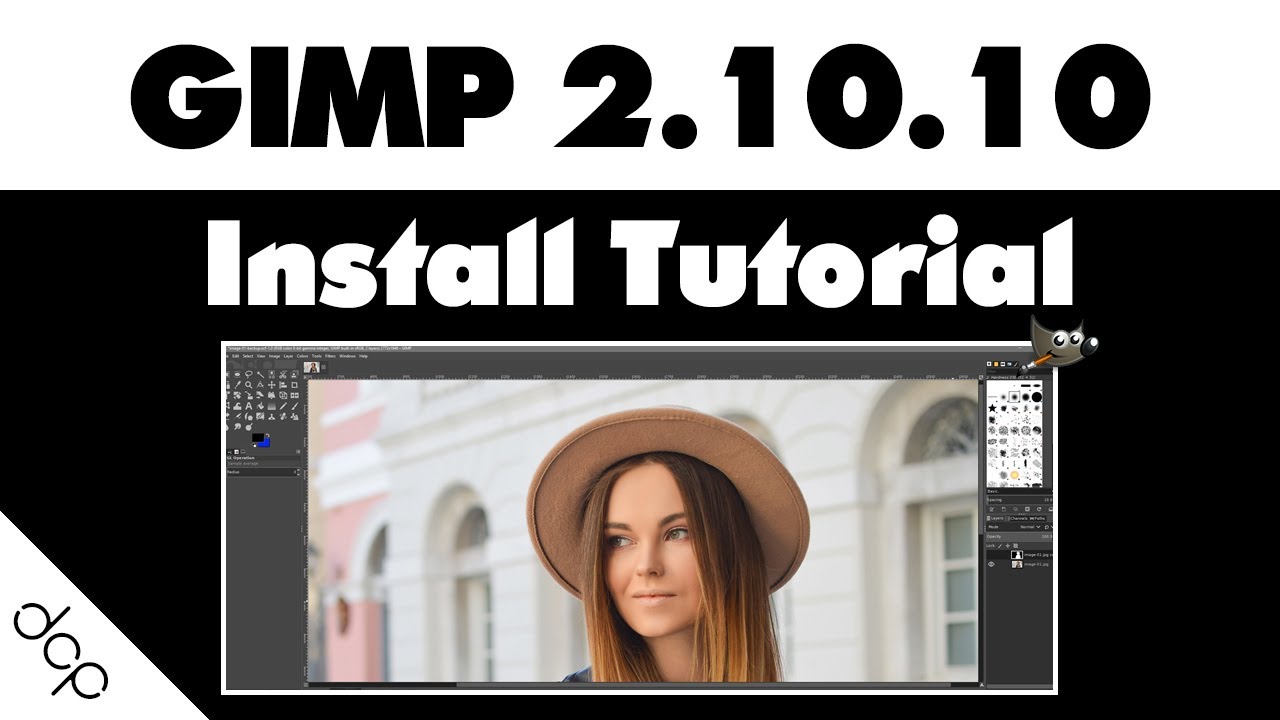
GIMP is a free image editing software. It is still supported by many people as it is an easy-to-use software for people who want to edit images without spending a lot of money, or even for people who are trying image editing for the first time.
This time, I will introduce the functions installed in GIMP.
If you are wondering, “How much can I use it for free?”, please refer to it.
What is GIMP?
GIMP
is a free image editing software developed as
open source
. It has a reputation for being as versatile as paid image editing software such as Photoshop, and since its release in 1996, it has become a tool widely used by everyone from professional editors to amateurs.
Although it is an image editing software, it can also be used as a painting tool and has features similar to Illustrator. It can be used on both Windows and Mac, so it can be used in a variety of situations.
Functions that can be used with GIMP
From here, I will explain the functions that can be used with GIMP.
Image cropping
Cuts out only a specific part from the original image that serves as the material. This is a highly versatile feature that allows you to cut out unnecessary parts by picking out specific people from a group photo or cutting out the background into a circle, square, or other shape of your choice.
You can set a straight cutout line by clicking the mouse along the outline of a person or animal, but you can also set a curved line using a stylus pen, etc.

trimming
In addition to cutting out images by drawing free lines, you can also trim them with one click. If you want to make simple cuts such as circles or squares, you can save time by using trimming.
In addition to trimming only the part you want to keep as an image and erasing the background, it is also possible to trim only a specific part. Try using it when you want to remove faces, text, etc.
letter insert
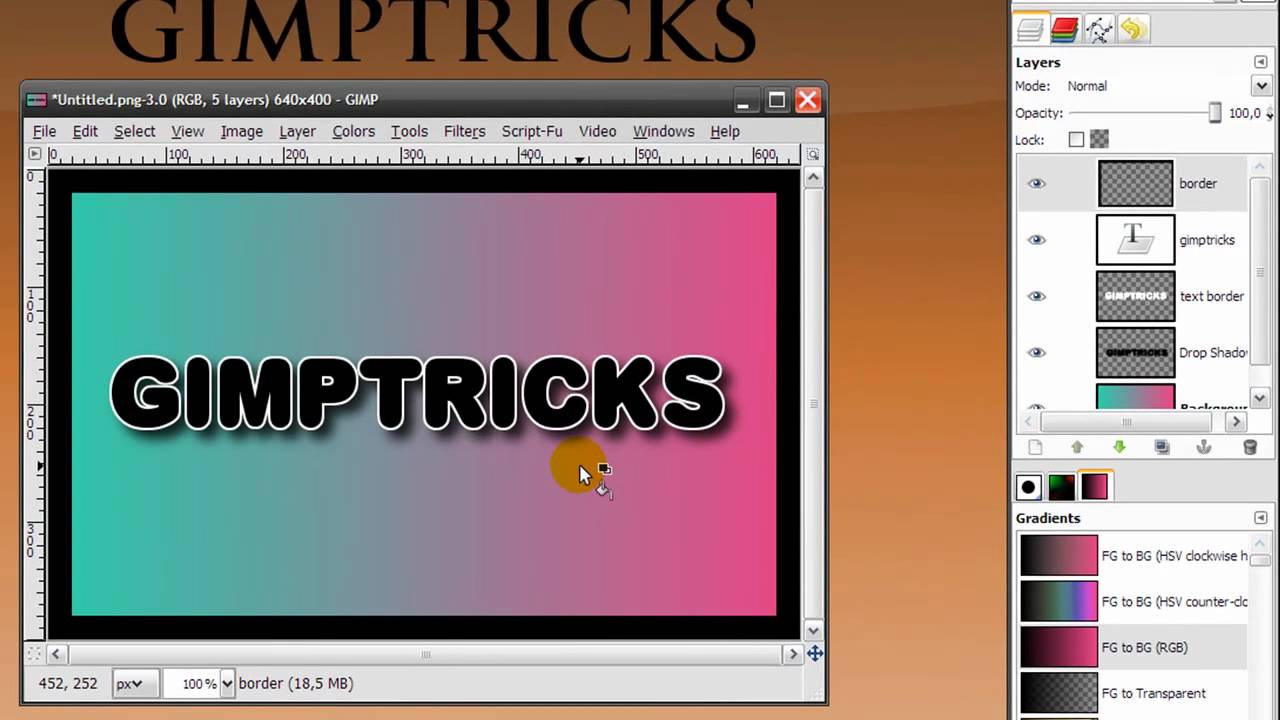
This function allows you to place text on top of an image. It is often used to create eye-catching thumbnail images for blogs and
owned media
, icons for SNS, and product description images for
e-commerce
sites.
A wide range of colors and sizes are available, allowing for flexible image editing. If you want to use a font other than the existing fonts, you can also add external materials, so the key is to be able to freely insert text.
drawing
It also has a function that allows you to freely draw without any materials at all. This is useful when you want to design from scratch or when you want to use illustration materials that don’t need to worry about copyright.
The drawing function can also be used over (or under) other materials. By setting layers, you can prevent them from interfering with each other, so it is a good idea to use them when you want to combine materials and drawings.

Transparency/Blur
It is also possible to edit the background of the material, such as making it transparent or blurring it.
By applying blur to the background of a photo, you can create a highly designed material that looks like it is intentionally out of focus. Another advantage is that it can be used for compliance measures, such as blurring people’s faces as a measure against personal information, hiding product logos of companies other than partner companies.
Transparency is applied in the same way as cropping, surrounding the part you want to make transparent. In addition, it supports a variety of operations such as using the eraser tool to rub the area you want to make transparent, so you can find a method that is convenient for you.
Mosaic processing
GIMP allows you to add mosaic processing. Since it can be shown that the information has been “deliberately edited” rather than blurring it, it will be possible to emphasize the strengthening of compliance while giving sufficient consideration to the leakage of unnecessary information.
It is also possible to perform operations such as applying mosaic to the entire image and then removing the mosaic from only the target area. It is also effective in scenes where there are many parts to be mosaiced (such as when a private residence is likely to be inferred from the neighborhood or townscape, or when you do not want people to know the location of the restaurant where the meeting was held).

Enlarge/reduce/resize
Images can be enlarged, reduced, and resized to suit your needs. It is convenient because you can not only enlarge or reduce a specific part, but also change the size of the image file itself.
You can resize by directly inputting the width and height, or you can specify the horizontal (and vertical) resolution. However, please be aware that if you apply the chain icons without connecting them, the aspect ratio may change.
image synthesis
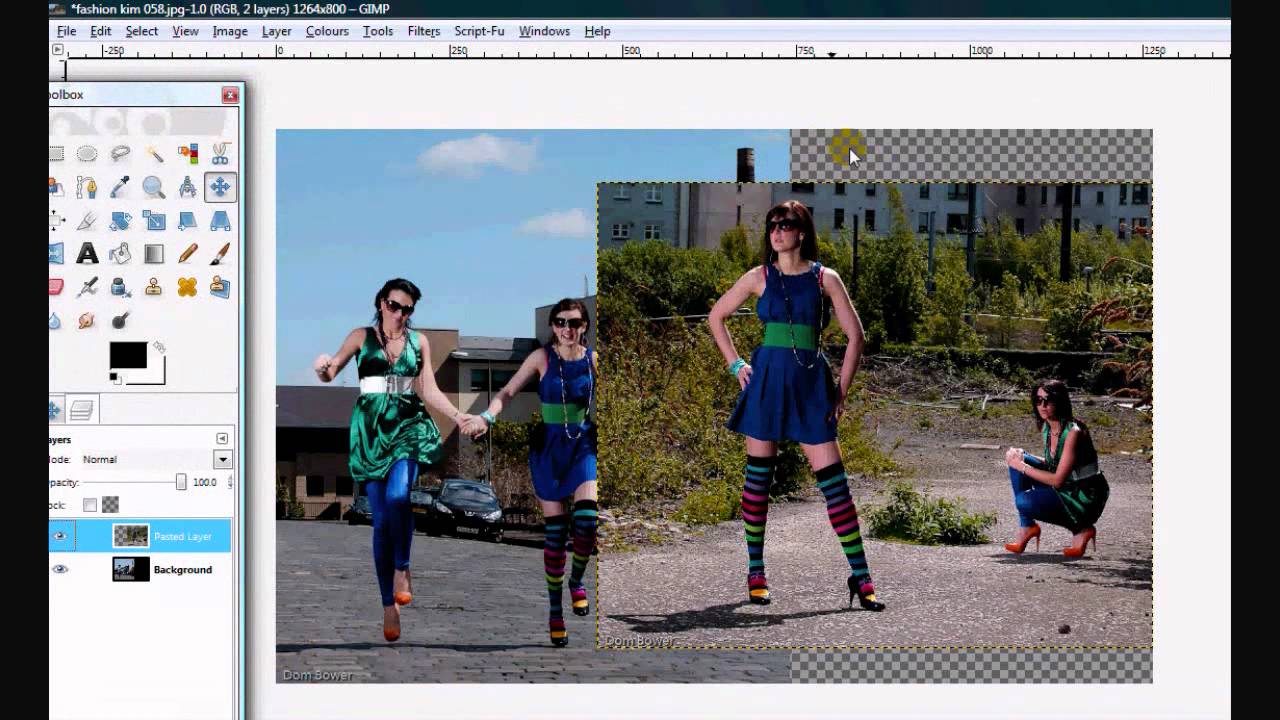
This is a function that combines two image materials into a single image.
For example, you can combine a spring-like background of cherry blossoms in full bloom with a photo of students at school to create an image that looks like a cherry blossom viewing experience. It can be used not only for backgrounds and people, but also for compositing people to create the impression that they are in the same space.
You can also arrange it using the blur function and text insertion function mentioned above.
Color change/brightness change/retouching
You can change the tone and brightness of the entire image. In addition, it is also possible to “turn only a specific part red” or “tone up only a specific person”.
The details will be explained later, but please note that GIMP only handles RBG. It is not compatible with editing in CMYK, which is the coloring system used in printed matter, and the color tones may differ from the image when printed, so be sure to check this in advance.
Correction/Correction/Processing
It also has functions for correcting, correcting, and processing images. It has a variety of uses, including making your face smaller, covering your body shape, removing spots and moles, and making it look like you’re wearing makeup.
It can also be used in other situations, such as enlarging the background, adjusting the tilt, lengthening (shortening) the length of a jacket, etc. The quality is higher than the processing apps provided for smartphones, so it is also recommended when you want to make fine adjustments.

GIF animation creation
You can create simple “GIF animations” using the principles of flipbook comics.
You can create light GIF animations that don’t take long to load on smartphones or tablets, so they can be used in a variety of places such as
homepages
, blogs, owned media, EC sites, SNS, etc. This is suitable when you don’t need the length of a video, or when you want to add comedic and friendly movements.
juxtaposition of images
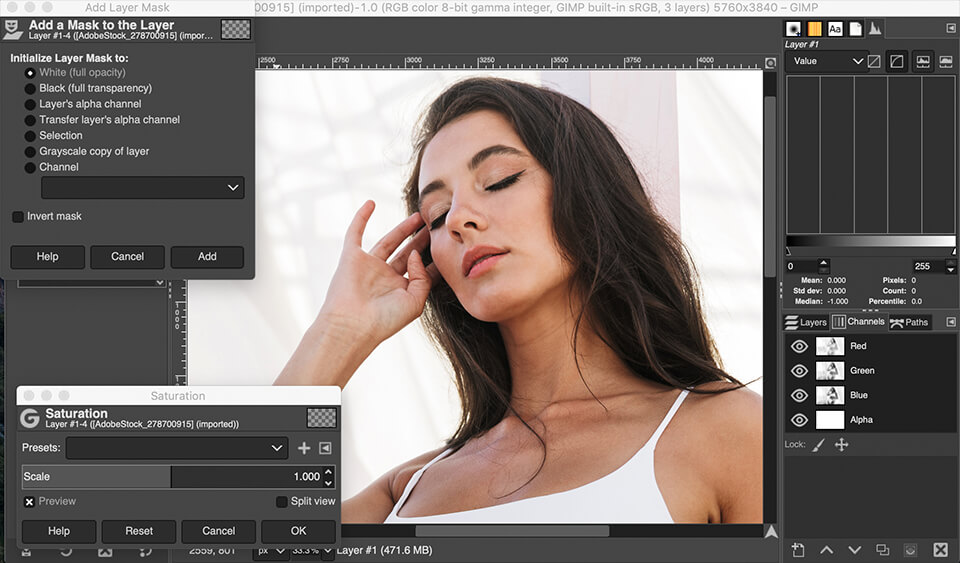
You can arrange multiple images and treat them as one image. This method is often used on e-commerce sites and hotel reservation sites that have a lot of photo information, and is convenient because it makes it easier to provide multiple images on one screen.
Conversely, you can also separate multiple images into a single image. Slicing can be done using a guide, so it is hassle-free and does not require manual work such as trimming.
Advantages of GIMP
The benefits of GIMP are not limited to being free to use and being multifunctional. I will explain the other benefits.
Can handle PSD files
GIMP supports PSD files, which is Photoshop’s proprietary extension.
Therefore, even if your clients or other related parties use Photoshop and need to exchange files, you can do so without any problems. It is convenient because you can easily edit it without anyone knowing that you are using free software.
However, be careful as the GIMP extension, XCF, cannot be opened in Photoshop.
No need for a high-spec computer
Image editing requires a huge amount of work, so many people think that a high-spec computer is essential. However, GIMP does not have any recommended system requirements, and the advantage is that it runs smoothly on a computer with around 4GB of RAM.
It is an easy-to-use tool even for students and beginners who are burdened by the burden of purchasing a new computer for image editing.
Disadvantages of GIMP
Although GIMP has many advantages, there are also disadvantages. Let’s understand not only the advantages but also the disadvantages and decide whether it can be used according to the purpose.
Weak in scaling up and down
GIMP has a scaling function, but you need to be careful when making major changes. Especially when enlarging the image, the image quality often feels rough, and it may look cheap.
This is a weakness unique to paint software, which generates images by aggregating dots, and requires sufficient quality of the original image.
Image may change when printed
GIMP is a tool that is good at editing materials for use on the web, and is not suitable for printing.
Of course, it has a printing function, but there is a difference between the colors that are compatible with printing and the colors that GIMP supports, and when you try to print, the colors may differ from those on the screen. There are many. You need to know that it does not support editing in CMYK (only RGB is supported).
Therefore, be careful when preparing images for pamphlets, flyers, posters, signboards, etc. in GIMP.
It takes time to start up
Since it uses many external plugins and scripts, it may take some time to start up. If you want to use image editing software frequently every day, you may need to consider the balance between efficiency and efficiency.
However, there are many people who feel that they have no choice but to maintain the versatility of free apps. Let’s use it while comparing the benefits of being able to use it for free.
summary
GIMP is an image editing software that is as versatile as paid software.
If you want to edit images at the lowest cost possible, or if you don’t have any problems using only the orthodox functions, you should try using it. We recommend that you consider the advantages and disadvantages introduced here and decide whether it is suitable for you.