

If you have it, you can use the various tools provided by Google, which is highly valued by many web professionals and companies.
In this article, we will introduce an overview of Google
accounts
, how to create one, and how to create multiple Google accounts. We will also explain things to keep in mind when using a Google account and how to log in, so please refer to this if you are considering creating a Google account.
What is a Google account?
First, let’s start with an overview of your Google account. Google Account is a free account service provided by Google that manages user information for using Google services. With one Google account, you can use convenient services provided by Google for free, and you can also improve your daily work efficiency.
There are two types of Google accounts: one that can be created for free and one called Google Workspace, which is mainly for businesses such as corporations. Although Google Workspace offers a wider range of functions, it comes with a monthly running cost, so in this article we will explain about Google accounts that can be used by individuals.

Services available by creating a Google account
Earlier, I explained that by creating a Google account, you can use various tools from Google. Here are some examples of services provided by Google.
- G-mail
- Google Drive
- Google Docs
- Google Sheets
- Google Slides
- Google Maps
- Google Photos
- Google Calendar
- YouTube
There are also other sites such as Google Play where you can download apps. “Google Docs” and “Google Sheets” mentioned above are often used as alternatives to Word and Excel provided by Microsoft. In addition, it is also possible to convert Google documents, etc. into Word files, Excel files, PDF files, etc. and then download them.
In this way, with just one Google account, you can use the tools mentioned above to improve your business efficiency. Another good point is that you don’t have to worry about running costs because it’s free to use.
How to create a Google account
So far, we have provided an overview of Google Accounts. From here, I will introduce how to create a Google account, including some screenshots. Here are the steps:
- Enter the top page of your Google account
- Enter username, password, and name
- Date of birth/gender
- Acceptance of Terms of Use
Let’s look at each in turn.
Enter the top page of your Google account
First, on
the top page of your Google account
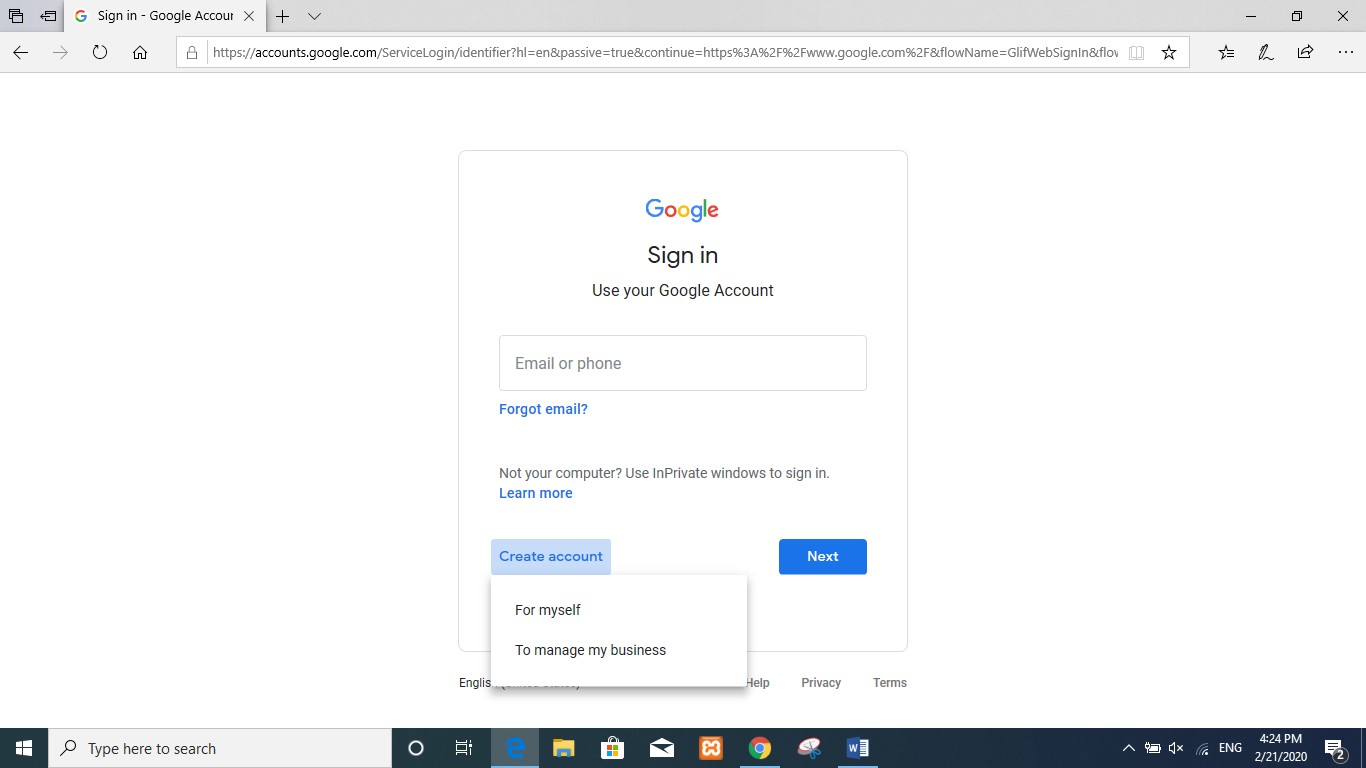
, click the “Create an account” button in the top right corner.
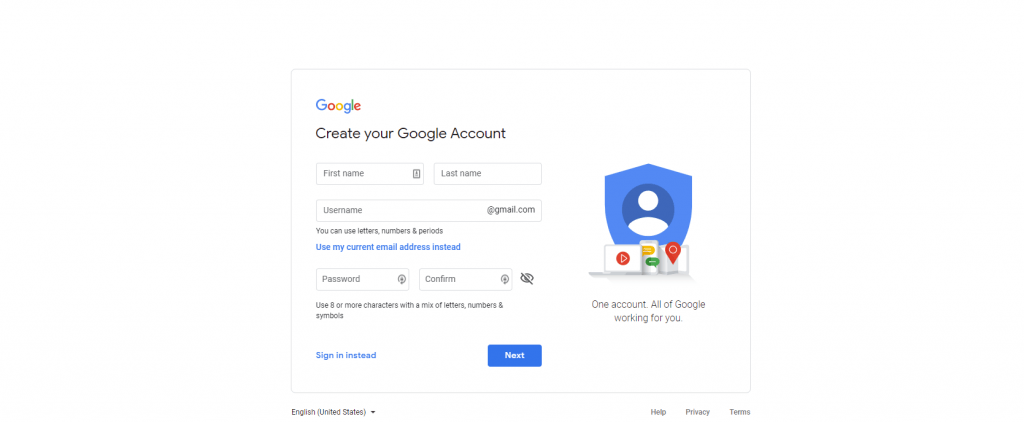
When you click the Create Account button, you will be redirected to the next screen where you can enter your name and username.
Username/Password/Name
Here, enter your username, password, and full name.
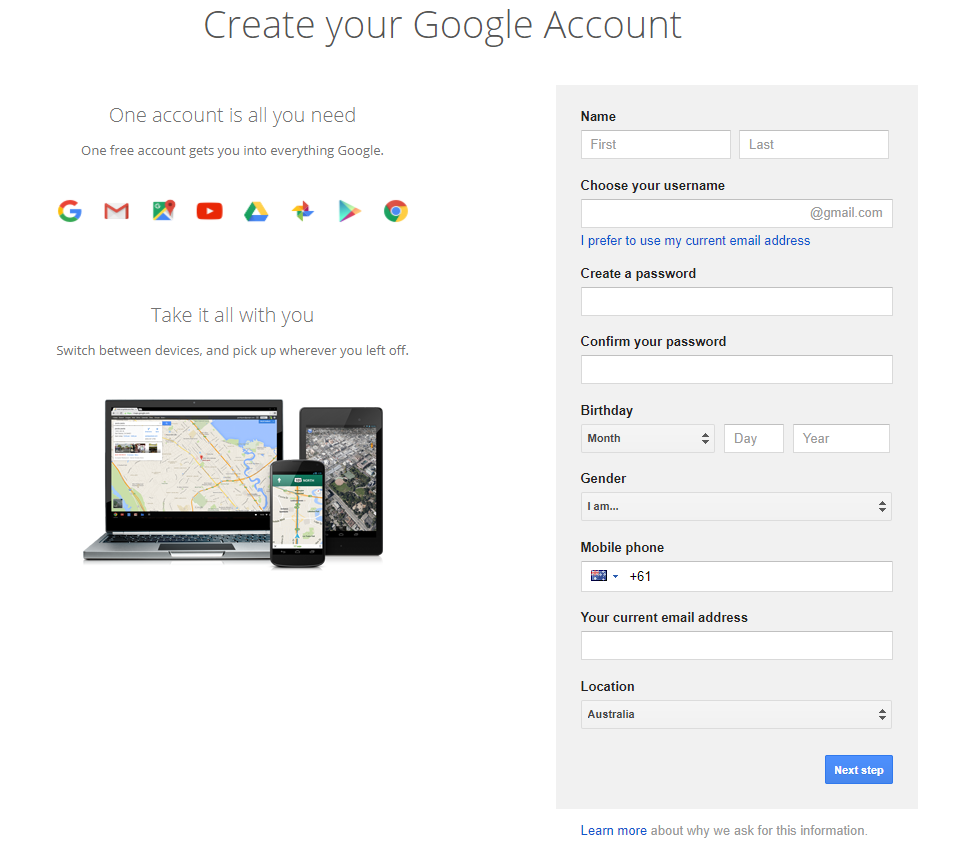
Your name here does not have to be your real name. However, your name will be displayed when you use the Google services mentioned above, so if you are using it for business or business, we recommend that you enter your real name.
Additionally, your username will be used as your address when using Gmail. Regarding this point as well, if you are using the service as a business or business owner, be sure to enter your company name as the username, or enter a username that identifies you as an individual.
As for the final password, you can use anything you like. If you forget your password, you can change it by contacting Google.
Date of birth/gender
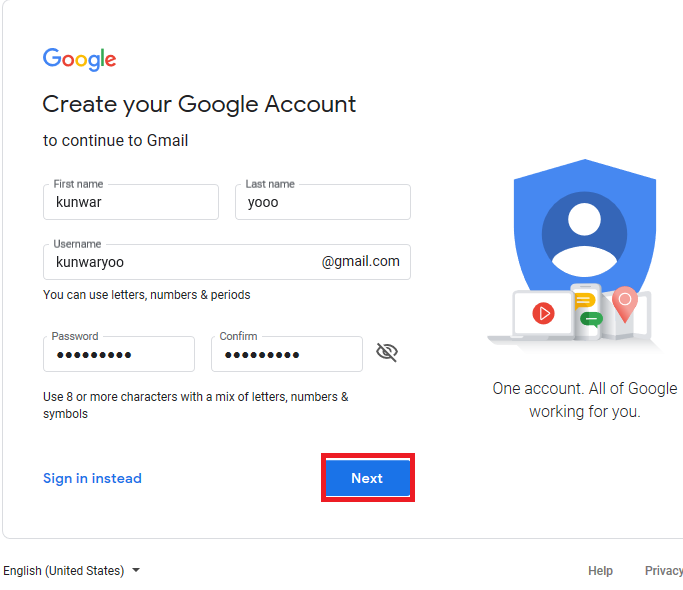
Next, as shown in the image above, enter your phone number, email address for resetting, etc. As for the phone number, you can use your personal phone number. If you want to create a Google account as a business owner and your company has a personal mobile phone, you can also create one using that mobile number.
Regarding the e-mail address for resetting, it can be either a personal e-mail address or a personal e-mail address that can be used within the company. Regarding date of birth and gender, you can choose from male, female, or unspecified. It is also possible to make “custom settings”. In the custom settings, you can also choose your public gender, so please choose the one that suits your situation.
Acceptance of Terms of Use
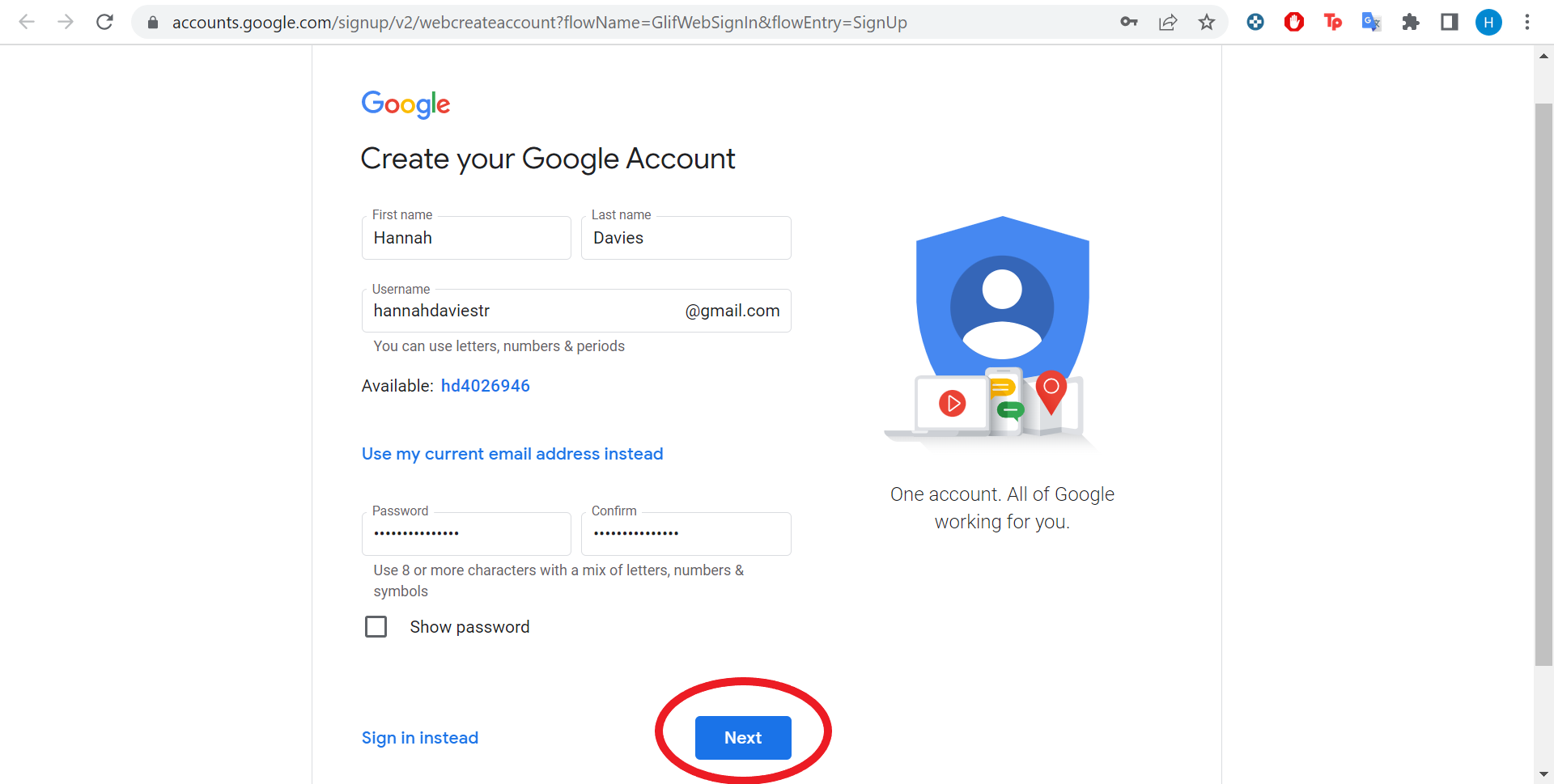
Finally, if you are satisfied with the information you have entered, click the “Agree” button as shown in the image above. Click the Agree button to complete the creation of your Google account.
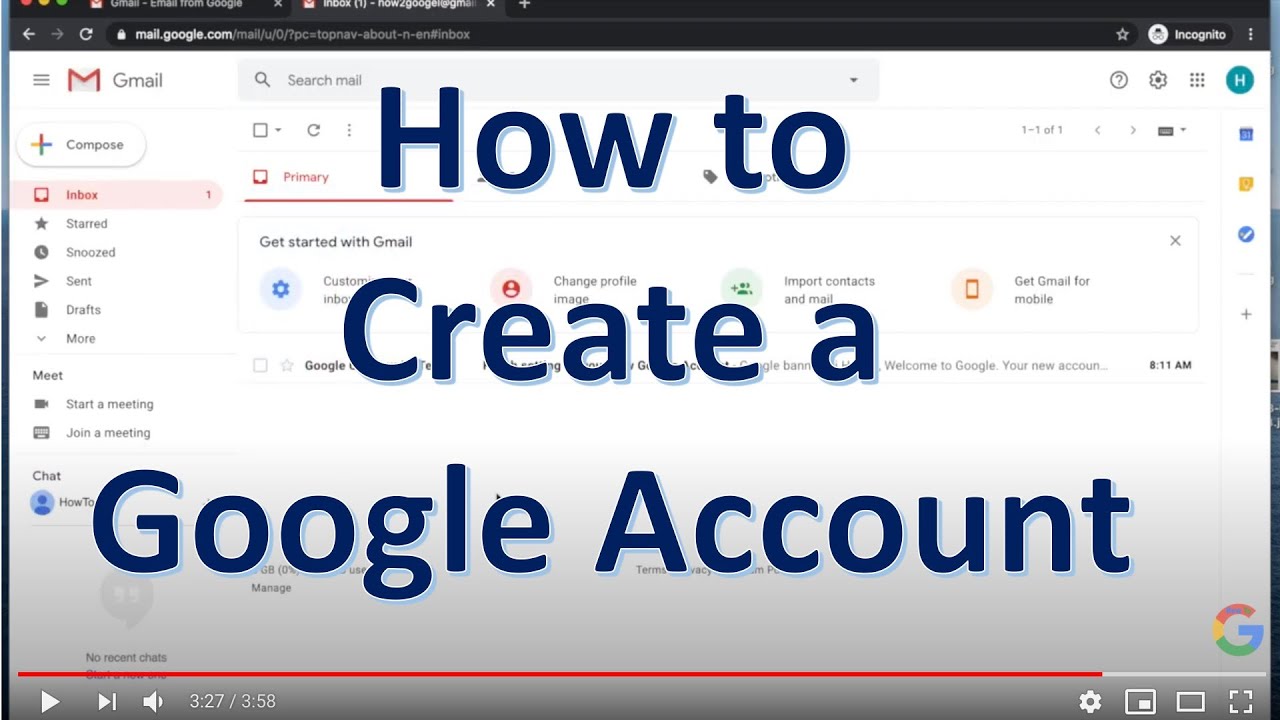
Once created, you will be able to use Google related services such as Google Docs and Gmail immediately.
How to create multiple Google accounts
So far, we have explained how to create a Google account. However, there may be many people who want to create multiple Google accounts. In that case, follow the steps below to create it.
- Add another account
- Create an account
I will explain each in turn.
Add another account
When you enter
the Google homepage
, you will see an account icon in the upper right corner. Click on the icon and click on the button that says “Add another account”.
Create an account
When you click the Add another account button, the screen shown in the image below will be displayed. There you will find a button that says “Create an account”, click on it.
:max_bytes(150000):strip_icc()/ScreenShot2020-02-18at9.23.09AM-29ce856c0c6a4b9b937bb2d1c049f006.jpg)
Once you click “Create Account”, you can create an account by following the same steps as above. Additionally, as of 2022, there is no upper limit on the number of Google accounts that can be created. Therefore, let’s create the required number one by one.
Notes on Google Accounts
So far, we have explained how to create a Google account. There are two things to keep in mind when creating a Google account, so be sure to keep them in mind before creating one.
- Not available to persons under 13 years of age
- Address cannot be changed later
I will explain each in turn.
Not available to persons under 13 years of age
Although age restrictions vary by country, in Japan, people under the age of 13 cannot create a Google account. If you are under the age of 13 and want to create a Google account, you will need to use the “Family Link” feature of your parent’s Google account. Additionally, you will need to enter your parent’s phone number and email address and also authenticate your account at the same time, so you will need to create an account together with your parent.
Address cannot be changed later
When creating a Google account, the username part will be the “before @” part used in Gmail. Please note that the part before this @ cannot be changed after creation. Therefore, when deciding on a username, be sure to consider your email address when creating a Google account.
How to log in to your Google account
So far, we have explained the important points to keep in mind when using your Google account. Finally, I will show you how to log in to your Google account. The steps are as follows:
- Click on Google Account Login
- Enter your phone number and G-mail address
- enter password
I will explain each in turn.
Click on Google Account Login
First, click the “Log in” button on the top right of the top page
of your Google account
. When you click the login button, you will be redirected to the next screen where you can enter your phone number and Gmail address.
Enter your phone number and G-mail address
Here, enter the phone number and Gmail address you entered when setting up your Google account. You will then be redirected to the next password entry screen.
enter password
Finally, enter the password you set when creating your Google account. You are now logged in to your Google account.

summary
In this article, we explained the overview of a Google account and how to create one. A Google Account is a free account service provided by Google, and once you create one, you will be able to use various Google services for free.
In addition, the steps required to create one are very simple, with only four steps required, and there is no upper limit on the number of creations. Why not start by registering your user information on the Google account creation page?