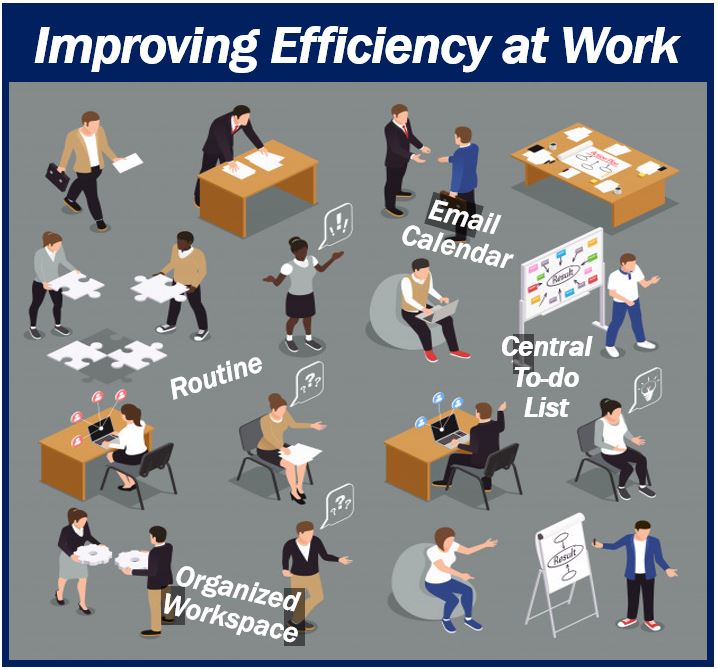
Marketing work is very wide-ranging and requires a huge amount of work. Additionally, because multiple cloud services are often used and each is independent, data aggregation and transcription can often be done manually.
This time, we will explain in detail about Zapiar, which can automate such laborious office work.
What is Zapier?

Marketing work covers a wide range of areas, including collecting and analyzing all kinds of data such as targets, company websites, advertisements, and improving measures, and sometimes requires a huge amount of administrative work. In addition, we currently use various cloud services for data collection and analysis, such as Google Analytics for our own website, Google Ads for listing ads, and the management screens of each SNS for SNS.

Additionally, in order to share the data collected by each tool within the company and consider improving measures, additional work is required to extract and compile the data. An IPaaS called Zapier can help with this. IPaas stands for Integration Platform as a Service. By linking various services, including not only the cloud but also on-premises, you can eliminate the hassle of using individual services.
Zapier was released in 2012 and is currently a tool that can connect over 2000 types of services. The main services used in marketing operations are covered, including Google Analytics and Google Ads, as well as SNS such as Facebook and Twitter, and business chats such as Slack and Chatwork. It can be used by non-engineers as it is a no-code program and does not involve writing any code in a programming language.
It can be used for free, but a paid plan is required depending on monthly usage. However, the number of tasks that are executed (described later) is counted, and the number of tasks is limited to 100 per month in the free plan, so if you have a simple workflow, you can fully utilize the free plan.
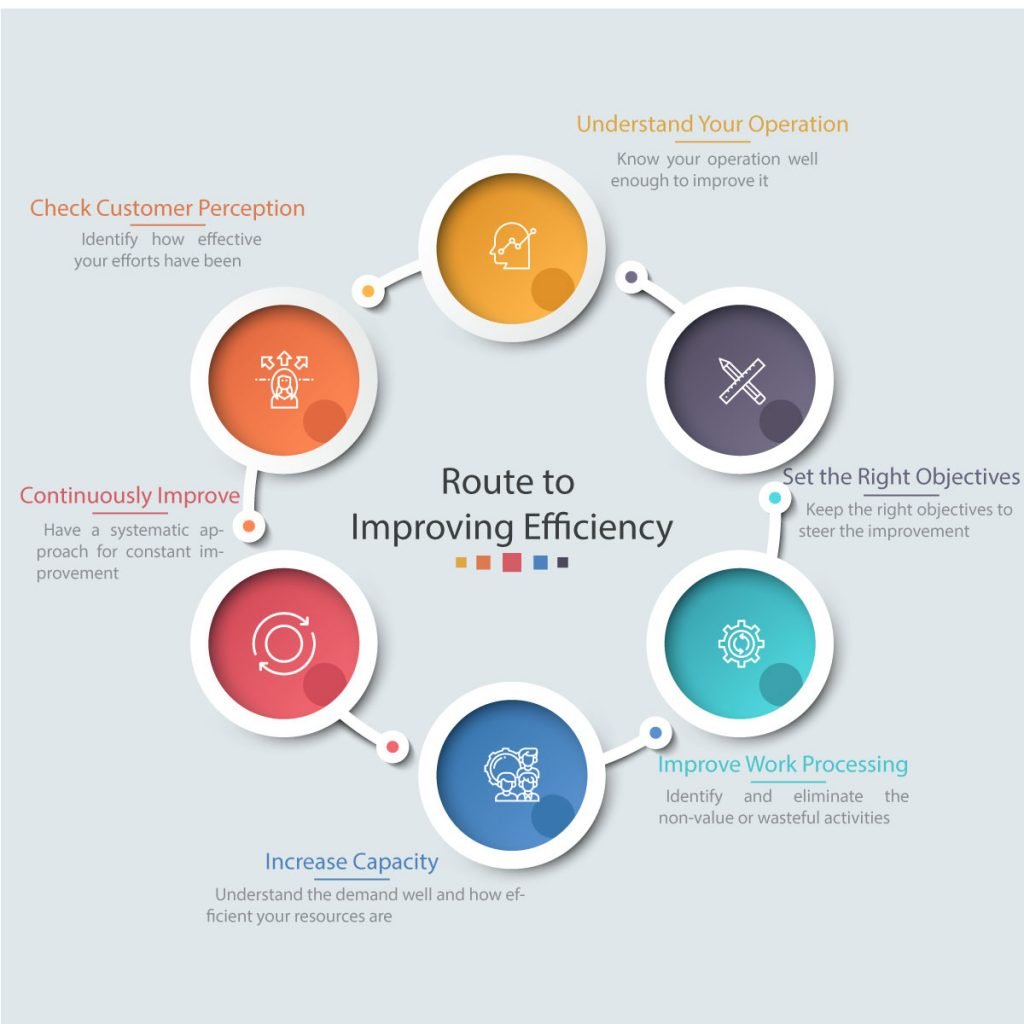
Tasks that can be automated in marketing

Below are some examples of marketing tasks that can be automated using Zapier.
- Notify Slack/Chatwork of inquiries and document downloads using HubSpot forms
- Transfer the contents of inquiries and document downloads to a spreadsheet using HubSpot forms
- Update contact information created in Salesforce to Marketo *Paid plan
- Post articles posted on WordPress to SNS such as Facebook and Twitter
- Transfer specific conversions from Google Analytics to a spreadsheet
- Notify Slack/Chatwork when a new campaign is set up in Google Ads
- Automate the import of conversion data into Google Ads
All other combinations are possible. By drawing a picture of how you want to do the work in front of you, you can improve the efficiency of your work.

How to use Zapiar
Zapier starts by creating an account.
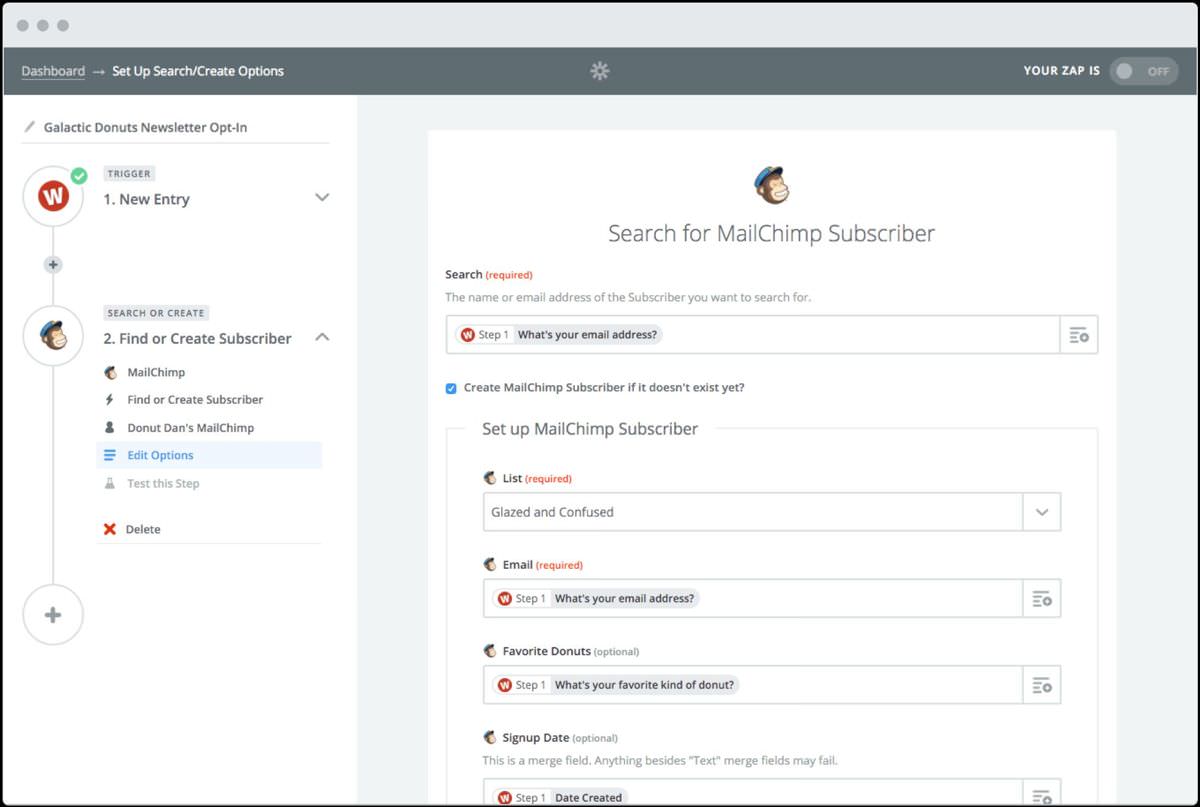
One workflow is called a Zap, and after creating an account, let’s start by creating a new Zap. Anyone can easily operate Zap by learning four items.
①Trigger
First, set up the workflow trigger. A trigger is something that starts a workflow. For example, if you want to share the meeting date and time set in Google Calendar on Slack, the trigger will set the meeting date and time in Google Calendar.
Trigger selects an app and an action within the app. In our example, the app would be Google Calendar and the action would be Generate a new event. You will then set up your account, but the first app you select will require you to log into your account. Then, set detailed actions in the app, test, and you’re done.
②Action
After setting the trigger, it’s time to set the action. For the trigger that set the meeting date and time to Google Calendar in ①, set the action to share the meeting date and time to Slack.
Similar to the trigger settings in ①, select the app and the action within the app, and configure the account settings. Then, set the details of the action in the app, test it, and you’re done.

Basically, you can configure settings according to the items displayed within Zapier, so you can easily complete the settings.

④Run
Run in History allows you to check the history of actions taken by Zap. If the configured workflow is not working, or if the configured workflow is not working as expected, you can check the past history and find the cause.