

If you’ve created a site using
WordPress
, which is highly customizable, you’ll probably want more features. WordPress plugins are a very useful tool that allows you to add additional functionality to your current site.
However, there are over thousands of
plug-ins
that have been released, and many people may not know which one to use. In this article, we will briefly introduce recommended plugins that you should install on your WordPress site. We will also introduce the steps to install the plug-in and the points to be noted when installing the plug-in, so please read until the end.
What is a WordPress plugin?
A WordPress plugin is a program that increases functionality to accomplish what you want to do on a website built with WordPress. For example, there are two purposes for installing a plugin:
Of course, it is possible to create a basic site using the functions that WordPress has in the first place. However, by installing additional plug-ins, you can add a wide variety of functions and create a unique and useful site.
・For beginners who want to use WordPress! We will explain how to get started and how to use it!
How to install WordPress plugins
Up to this point, we have provided an overview of the plugin. From here, I will explain how to install the plugin in two steps.
First install the plugin
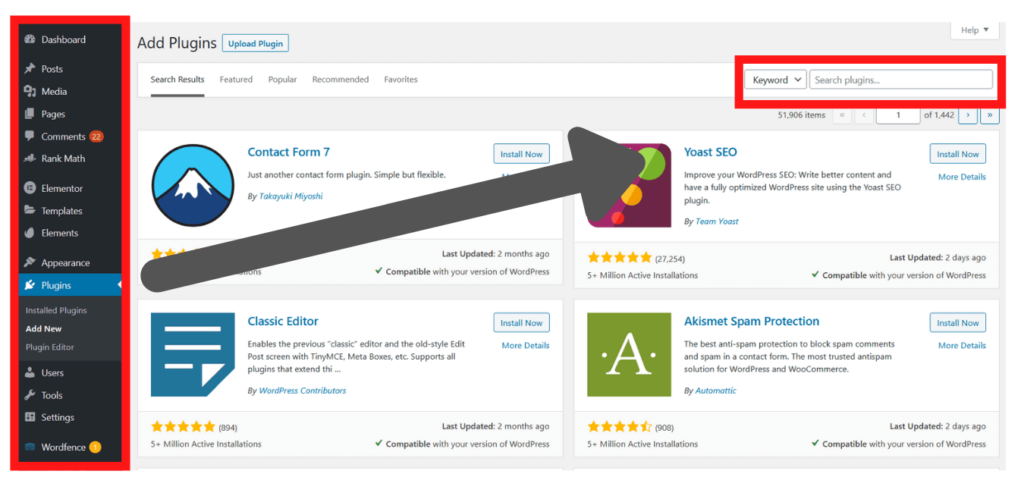
First, let’s install the plugin. First, go to your WordPress dashboard and select Add New under Plugins. Then, enter the plugin name or keyword you want to add in the keyword input field and click “Search Plugins”.
When the search results are displayed, the corresponding plugins will be displayed. Find the plugin you want and click the “Install Now” button to install it.
Enabling/various settings
You cannot use WordPress plugins just by installing them. Plugins must be “activated”.
When you click the “Install Now” button and the installation is complete, the “Install Now” button will display “Activate”. When it appears, click the “Activate” button to activate the plugin. When activation is complete, “Plug-in has been activated.” will be displayed.
This completes the activation of the plugin. This will enable you to use the corresponding plugin in WordPress.

8 recommended WordPress plugins you should install first
Here we will introduce 8 recommended WordPress plugins that you should install first.
All in One SEO Pack
All in One SEO Pack is a famous plugin that is almost synonymous with WordPress plugins. All in One SEO Pack is a plugin that allows you to easily implement
SEO
measures to attract customers to your site.
All in One SEO Pack has the following features:
All in One SEO Pack is multi-functional and convenient, but some WordPress themes themselves also have SEO features, so if the features interfere with each other, it is better to refrain from installing it.

Google XML Sitemap
Google XML Sitemaps is a plugin that automatically generates what are called XML sitemaps that allow Google’s search engine to recognize your content.
Using Google XML Sitemaps automatically generates an XML sitemap each time you create or update a page on your site, making it very effective for SEO. Some WordPress themes do not support only XML sitemaps, so in those cases, you may want to install Google XML Sitemaps.
However, if you have installed the All in One SEO Pack introduced earlier, this is not necessary as All in One SEO Pack has the function to create an XML sitemap. Decide whether to install or not depending on the plugins you have installed.
TinyMCE Advanced
TinyMCE Advanced is a plugin that customizes the WordPress post screen and enhances the visual editor functionality. By installing it, you can add functions that can be used when creating a post screen, such as changing the font size.
The WordPress post screen is very simple and easy to use, but you will need knowledge of
HTML
to create headings and change the font size. Using TinyMCE Advanced, you can configure these settings with one button without having any knowledge of HTML.
If you want to enhance the article content on your site, be sure to install TinyMCE Advanced.

Akismet
Akismet is a plugin that prevents spam comments and spam inquiries.
When the number of unwanted comments and inquiries increases, it becomes difficult to manually delete them. However, with Akismet, spam comments are automatically sorted into a dedicated folder, eliminating the troublesome task of checking and deleting comments.
Akismet requires a fee for commercial use, so please be careful here.
BackWPup
BackWPup is a plugin that allows you to back up your site.
There is always the possibility that data on websites and blogs may be completely lost due to server malfunctions. If the data disappears, the article you created will also be lost and you will have to create it from scratch.
BackWPup allows you to easily back up your entire site’s databases and files. You can choose between manual and automatic backup methods, so choose the method that suits you best.
Also, BackWPup is a free plugin, but if you want more features, you can use the paid version.
EWWW Image Optimizer
EWWW Image Optimizer is a plugin that automatically compresses the images you upload to your site to improve your site’s display speed.
Image files occupy the largest amount of data on your site. As the number of image files increases, the display speed of the site becomes slower and slower, which also causes problems in terms of SEO.
EWWW Image Optimizer automatically compresses images without having to manually compress each image file one by one. This allows you to reduce the number of images posted in article content or manually compress the image size, greatly reducing the amount of work required.
Contact Form 7
Contact Form 7 is a Japanese-made plugin that allows you to easily create contact forms.
Creating an inquiry form may seem easy, but it is actually a very difficult task that requires specialized knowledge of HTML and other languages.
Contact Form 7 allows you to easily create contact forms, which are very important from a marketing perspective. You can also set up a function that automatically replies to inquiries by email, which will be very useful.
Site Guard
Site Guard is a plugin that strengthens security when logging in.
I’m sure many of you have had the experience of being asked for image authentication when trying to log in to a site.
Using Site Guard, you can set up image authentication when logging in or posting comments, and you can add a function that locks your site if you fail to log in repeatedly.
We recommend that you install Site Guard to prevent suspicious access and logins.
5 convenient plugins to install
From here, we will introduce 5 plugins that are useful to install.
Classic Editor
Classic Editor is a plugin that reverts the WordPress post editor to an older version.
WordPress underwent a major update in 2018, and the post editor was changed to a block editor.
For those who are used to the old classic editor, the block editor, which creates content in blocks, may feel very difficult to use. Classic Editor allows you to change the block editor back to the old classic editor.
Table of Contents Plus
Table of Contents Plus is a plugin that allows you to insert a table of contents into article content.
The longer the article content becomes, the harder it becomes to understand it at a glance. In such cases, it is very useful to be able to see the entire article content in the table of contents.
Table of Contents Plus automatically generates a table of contents using headings as reference. However, some WordPress themes automatically generate a table of contents. When choosing a theme, check whether the theme automatically generates a table of contents or not before installing Table of Contents Plus.
WP Social Bookmarking Light
WP Social Bookmarking Light is a plugin that allows you to easily introduce social buttons such as SNS.
Social buttons are essential to reach more people with your site’s content. By increasing the spread on SNS, you can increase the attention of your site and increase the number of accesses.
Using WP Social Bookmarking Light, you can easily set the position of social buttons and which page/content the social buttons should appear on.
WP Super Cache
WP Super Cache is a plugin that improves the speed of your site.
The article content will be in the form of an HTML file that is dynamically loaded when the page is displayed. Dynamic means that the display changes depending on the access situation and user, and if files are loaded dynamically, it will put a load on the site and may cause the server to go down.
WP Super Cache automatically generates static HTML files when a page is displayed, reducing the load on your site and greatly improving its display speed. It reduces the load on your site, increases page display speed, and is also effective as an SEO measure.
RealFaviconGenerator
RealFaviconGenerator is a plugin that allows you to set the icon displayed next to the site name. When you save a site as a bookmark, an icon with the image of the site will be displayed next to it. That icon is called a favicon.
If a favicon is not set for a site created with WordPress, the standard WordPress icon will be displayed. Using RealFaviconGenerator, you can easily set your own favicon and increase the trustworthiness of your site.
Basic knowledge about WordPress plugins
So far, we have introduced recommended plugins, but we will once again explain the basic knowledge and precautions regarding WordPress plugins.
Do not install plugins that interfere with each other.
WordPress plugins are great tools that allow you to easily add functionality, but some combinations of plugins may interfere with each other. It is difficult to determine specifically whether these plug-ins are incompatible with each other, so it may be difficult for beginners to judge.
However, there are trends in plugins that are more likely to cause problems. These are plugins that are installed in low numbers or whose versions haven’t been updated in years.
Plugins that are not very popular, are not installed, and are no longer compatible with various system updates are more likely to have problems.
Before installing a plugin, be sure to check the number of installed plugins and version information, and avoid adding plugins that are likely to cause problems.
Take a backup before installation
By adding plugins, you can add various functions to WordPress, which is very useful. However, as explained earlier, if you include too many plugins, they may interfere with each other or cause problems.
Once the site itself becomes slow or a problem occurs, there is no way to restore it. To prevent such situations, be sure to make a backup before installing a plugin.
The more plugins you install, the slower the speed becomes.
Although you can add as many plugins as you like, WordPress has a limited capacity. The more plugins you install, the slower your site will load.
Having a large number of plugins increases the convenience of the site, but if the site itself becomes heavy, it reduces the comfort level for users. Please install only necessary plugins and avoid unnecessary plugins as much as possible.
Summary: Become strong in SEO by mastering plugins
Up to this point, we have introduced recommended plug-ins, the procedure for installing plug-ins, and points to note when installing them.
There are countless types of WordPress plugins, and depending on which plugins you add, you can build your own unique site. Let’s add a plug-in, paying careful attention to the points to note when installing it.
Additionally, some plugins have features that are essential for SEO. In order to attract more customers to your site, try to install as many plugins as possible that have the functions necessary for SEO measures.